OtoDock

OtoDock
About
OtoDock is a platform for AI agents that you or your organisation run on your own server. Each agent has its own workspace, memory, tools and schedules, and the people on the server share the agents with roles.
Connecting Notion lets your agents work in your workspace:
• Read pages and databases, so an agent knows your specs, notes and docs before it acts.
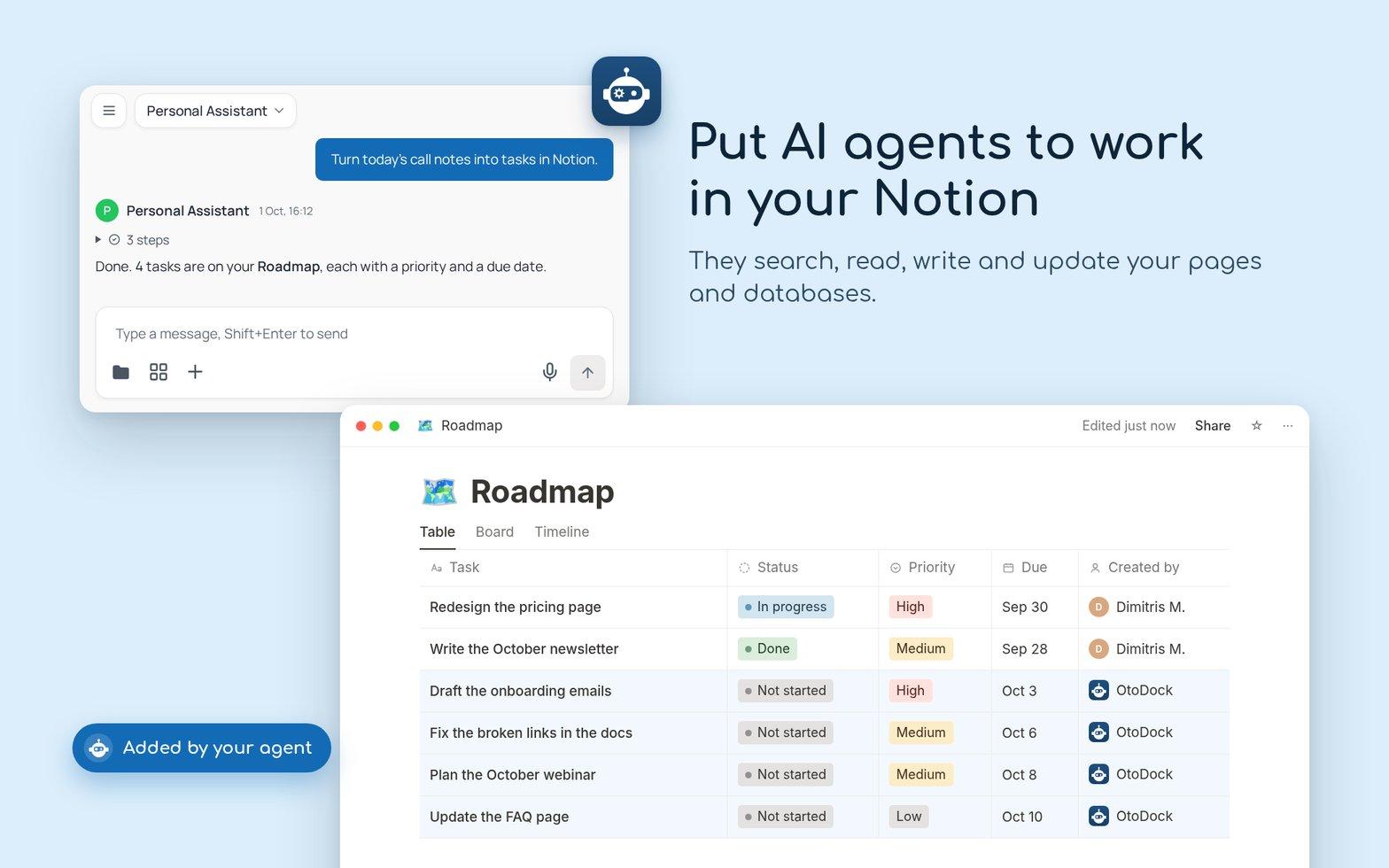
• Create and update pages: meeting notes, project briefs, weekly summaries and drafts.
• Query and update databases: keep a tracker current, file a task, log a result.
• Read pages' comments and add new ones.
• Search your workspace to answer questions from your own knowledge base.
Agents in OtoDock also work on a schedule or when an event arrives. A morning brief lands in Notion before you sit down, and a weekly report is drafted on Friday afternoon.
Where your data goes
Your agents, your chats and the content they read from Notion stay on your own OtoDock server. OtoDock's sign-in service passes the access to your server and deletes its copy within minutes. It never calls Notion with your account. To carry out a request, your server sends what it needs to the AI model its administrator chose. You choose which pages and databases OtoDock can reach with Notion's own page sharing, and you can disconnect at any time.
OtoDock is fair source (FSL-1.1-ALv2). The code is public: https://github.com/OtoDock/oto-dock
Features
- Read, insert, & update contentCan read, insert, & update pages, databases, and blocks shared with this connection.
- Read & add commentsCan read & add comments on the pages and blocks it can access.
- View workspace usersReads basic profile details about workspace members and guests, including their email addresses.
How to use
1. Install OtoDock on your own server: https://docs.otodock.io/getting-started/installation
2. As an admin, open Admin → MCP Servers → Browse Community MCPs and install Notion. It signs in through OtoDock, with nothing to register.
3. Turn Notion on for an agent under Agent Settings → MCPs.
4. Open User Settings → Integrations, connect Notion and pick the pages and databases to share.
5. Ask the agent, for example:
• "Summarise this week's meeting notes into a new page under Team Updates."
• "Check the Roadmap database and tell me what is overdue."
• "Every Monday at 8am, write a status brief into my Weekly Notes."