管理成员和访客

在 Notion 中与他人协作非常简单。你可以添加成员与你在工作空间中协作,或邀请访客查看、评论或编辑特定页面。
跳转到常见问题
注意:如果你使用的是企业版方案,本文中的图片可能与在 Notion 中看到的略有不同。感谢你的理解!

了解更多关于工作空间中不同类型人员的信息
注意:在付费方案中,你将按工作空间中的成员人数付费。如需了解更多方案信息,请前往此处 →
通过电子邮件
使用电子邮件添加成员:
前往
设置→人员或成员(具体取决于你的方案)。前往
成员选项卡。选择
添加成员并输入你想添加的那个人的(电子)邮件地址。如果你没有邀请权限,则可选择请求添加成员。在下拉菜单中选择将其添加为
工作空间所有者、成员管理员或成员,然后点击邀请.他们会收到一封包含登录链接的(电子)邮件,点击即可加入你的工作空间。
使用链接
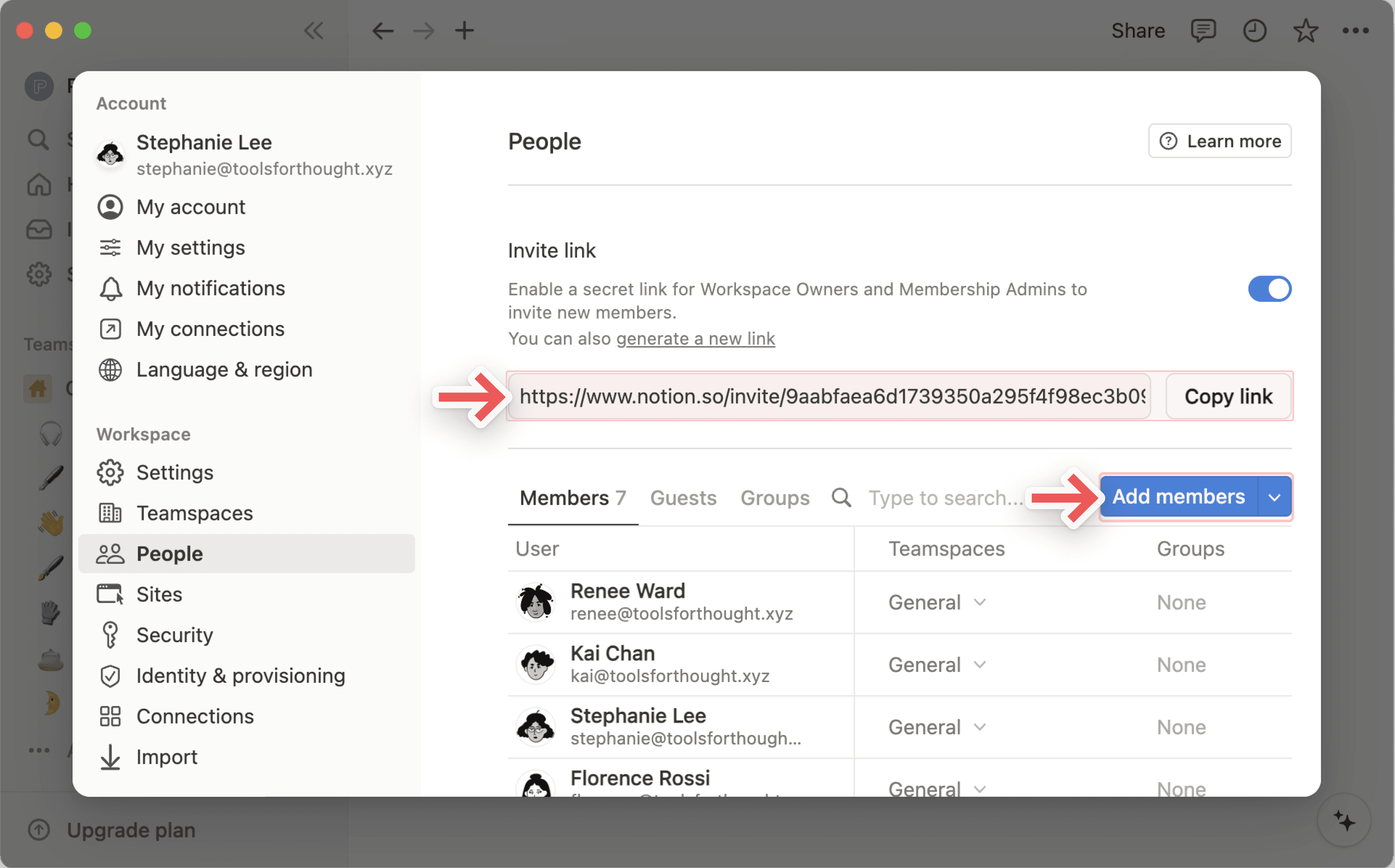
通过链接添加成员:
前往
设置→人员或成员(具体取决于你的方案)。前往
成员选项卡。选择
复制链接,将私密链接复制到剪贴板,并分享给你想邀请一起工作的人。当被邀请的用户点击该私密链接时,他们会自动以付费成员身份加入你的工作空间,无需你手动输入他们的(电子)邮件地址。
如果你不希望通过链接邀请他人加入你的工作空间,请关闭
邀请链接旁边的切换按钮。
使用允许的域名
如果你在公司使用 Notion,你可以让任何人在用工作邮箱登录时自动加入你的工作空间。要设置这一点,工作空间所有者可以:
前往
设置→设置。在
已授权电子邮件域下,输入你想自动授予访问权限的电子邮件域,例如你公司的电子邮件域。你可以在此字段中添加多个已授权域,但只能添加工作空间成员帐号所属的域。
现在,每当有人使用属于这些域之一的电子邮件登录 Notion 时,他们在入职过程中会看到加入你的工作空间的选项。如果用户加入你的工作空间,他们将成为工作空间的成员,并相应地被计费。
更改成员角色
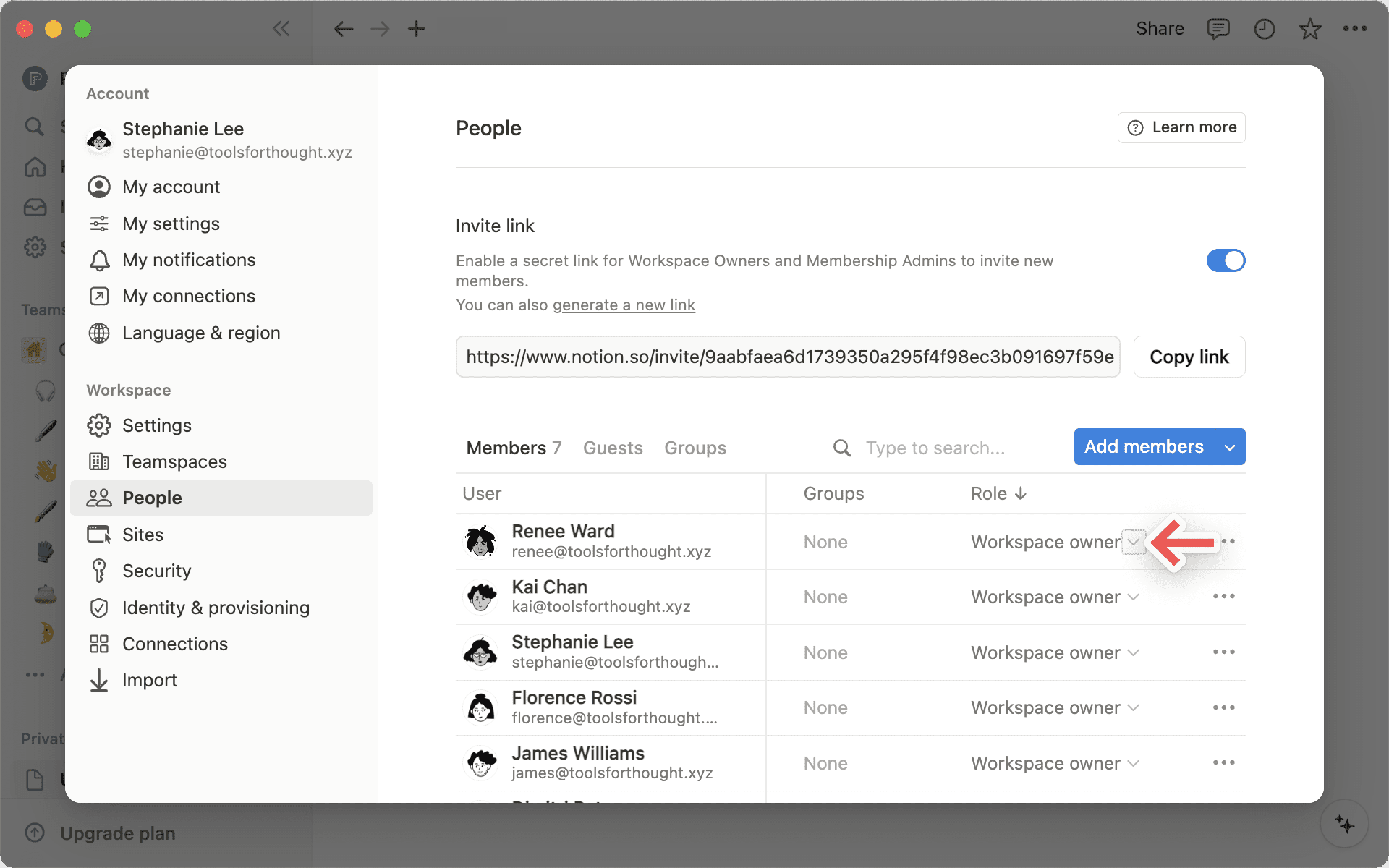
若要更改工作空间中成员的角色:
前往
设置→人员或成员(具体取决于你的方案)。前往
成员选项卡。选择成员角色的下拉菜单,然后选择
工作空间所有者、成员管理员或成员。
如果你与 Notion Marketplace 顾问合作,你可以授予他们对工作空间的限时访问权限,并将他们设置为临时成员。他们在到期前享有成员级别的访问权限,到期后访问权限将自动失效。临时成员不占用付费席位。
若要添加临时成员:
前往
设置→人员或成员(具体取决于你的方案)。前往
成员选项卡。选择
添加成员并输入你顾问的(电子)邮件地址。从角色下拉菜单中选择
临时成员。设置到期日期(最长为自今日起一年)。
点击
邀请。
他们会收到一封包含加入工作空间链接的(电子)邮件。一旦他们接受,就会出现在你的成员列表中,并显示其到期日期。
待处理请求
发送邀请后,直到顾问接受前,邀请会显示为待处理。你可以在“设置” → “成员”中查看并管理待处理的邀请。
延长或移除访问权限
管理员可以随时更新临时成员的到期日期或移除其访问权限:
前往
设置→人员或成员。在列表中找到该临时成员。
选择其名称旁边的
•••。选择
编辑到期日期或从工作空间移除。
了解访客与成员之间的区别,请点击此处 →
从页面
记住,访客只能添加到单个页面,不能添加到整个工作空间。要与访客共享页面:
前往页面右上角的“共享”。
输入你想邀请的访客的(电子)邮件地址。
从下拉菜单中为该访客选择访问级别,然后点击
邀请。选择
暂时跳过,以确保你将他们添加为访客,而非成员。
你的访客会收到一封包含页面链接的(电子)邮件。如果他们还未使用 Notion,则需要注册才能访问你的页面。
注意:
如果你无法与访客共享页面,原因可能是:
你的工作空间已达到访客限制。
你的工作空间或团队协作区已禁止将访客添加到页面。
你尝试共享页面的访客的(电子)邮件域名不是你的工作空间允许的(电子)邮件域名。
如果你使用的是企业版,且所有者已禁止成员邀请访客访问页面,那么你邀请到页面的任何人将自动被添加为成员。在执行上述步骤选择
邀请之前,你可以将鼠标悬停在访客的姓名或(电子)邮件上,以了解有关该人员将如何被添加到页面的更多信息。
从访客的请求中
为了方便你添加访客到你的工作空间,Notion 还允许工作空间外的人请求访问工作空间中的特定页面。此功能除企业版外的所有方案中均可使用,并默认开启。
如果你使用的是 Plus 或商业版,你可以关闭该设置。不幸的是,免费版无法关闭此功能。操作如下:
打开
设置→安全性。关闭
允许来自非成员的页面访问请求。
当访客提交页面访问请求后,页面创建者的收件箱会收到通知。页面创建者可以批准该请求,并为该访客调整访问权限,或选择忽略该请求。
提示:当你将某人添加到页面时,他们默认即可访问其所有子页面。但你可以选择限制或扩展子页面的权限!
工作空间的成员可以请求添加访客。此功能仅适用于企业版,并且只有工作空间所有者可以启用或禁用该功能。
启用访客添加和访客请求
若要允许成员直接将访客添加到工作空间页面,工作空间所有者可以:
前往
设置→安全性。在
成员与访客选项卡中,开启允许成员邀请访客访问页面。
若要允许成员请求将访客添加到工作空间页面,工作空间所有者可以:
前往
设置→安全性。在
成员和访客选项卡中,开启允许成员请求添加访客。
一旦开启此功能,成员和工作空间管理员在邀请访客之前必须先提交请求。工作空间所有者不受此限制,可以继续直接邀请访客。
注意:
当
允许成员邀请访客访问页面被关闭时,除工作空间所有者外,任何人都无法邀请访客。成员和工作空间管理员将无法邀请访客,如果工作空间允许,他们可以改为请求添加访客。允许成员请求添加访客是一项工作空间级别的设置,它将覆盖任何团队协作区级别的访客设置。这意味着如果团队协作区允许访客,但工作空间已启用访客请求,成员必须提交访客邀请请求才能将访客添加到团队协作区中的页面。
请求邀请访客
如果你是工作空间所有者,你可以直接邀请访客。
如果你是成员:
前往你想邀请访客的页面。就像常规共享一样,你必须拥有该页面的全部权限才能请求邀请访客。
选择
共享并输入你想邀请的访客姓名。选择你希望该访客拥有的角色。
选择
邀请。系统会向你的工作空间所有者发送一条通知,内容包含你请求邀请的访客的页面、角色和(电子)邮件。同时,你也会收到工作空间所有者已接到通知的确认信息。
批准访客
访客邀请请求必须逐个按页面和访客批准。只有工作空间所有者可以查看并批准访客请求。每个请求都会显示访客的(电子)邮件、发起请求的成员、所请求的角色以及页面名称。
工作空间所有者可以直接从收到的通知中批准或拒绝邀请访客的请求,也可以前往 设置 → 成员 → 访客 以在顶部找到这些请求。一旦工作空间所有者处理请求,提交请求的成员会收到通知。
将访客转为成员,让他们能够访问你整个工作空间。在付费方案中,你需要为每位新增成员付费。要将访客转为成员:
前往
设置→人员或成员(取决于你的方案)→访客。勾选你想升级的访客旁边的复选框。
选择
将 {#} 位访客升级为成员。一旦他们成为成员,你就可以在成员列表中找到他们并更改他们的角色。
对于非企业版方案,我们还会推荐一些可能从成为工作空间成员中受益的访客。要查看这些访客,请前往 设置 → 成员 → 建议。你可以选择 升级 将某人转为工作空间成员。
提示:想要从团队协作区中移除成员?请阅读此文!
若要从工作空间中移除成员或访客,工作空间所有者或成员管理员可以:
前往
设置→人员或成员(取决于你的方案)。前往
成员选项卡或访客选项卡。根据你的方案以及你要移除的对象:
打开成员角色或访问权限的下拉菜单,然后选择
从工作空间移除。打开访客页面的下拉菜单,或选择访客旁边的
•••,然后选择移除或从工作空间移除。
注意:
当你从工作空间中移除一名成员时,该成员将立即失去对工作空间的访问权限,其左侧边栏中
私人部分的页面将被隐藏。如果你再次邀请该成员加入工作空间,他们的私人页面将恢复显示。如果用户在过去 30 天内离开并重新加入了工作空间,则在重新加入后,其私人页面、共享页面、群组身份和团队协作区身份都将恢复。
常见问题
我可以添加的访客数量有限制吗?
我可以添加的访客数量有限制吗?
我点击了“加入或创建工作空间”按钮,但它只允许我创建工作空间。我该如何加入工作空间?
我点击了“加入或创建工作空间”按钮,但它只允许我创建工作空间。我该如何加入工作空间?
只有当工作空间启用了 已授权电子邮件域 设置以允许拥有相同电子邮件域的用户自动加入工作空间时,你才能通过 加入或创建工作空间 按钮加入该工作空间。
否则,你需要请该工作空间的管理员向你发送邀请。
如何使用群组来代替多个独立的工作空间?
如何使用群组来代替多个独立的工作空间?
我们发现人们为了设置细粒度的权限,创建了多个工作空间而不是群组。例如,他们为设计、营销和执行团队创建了独立的工作空间,这样这些群组就无法访问、编辑彼此的工作,也不会受到干扰。使用群组可以快速解决这个问题:
禁用
工作空间访问权限。这样,未被明确授予访问权限的人员和群组将无法看到页面。在每个页面上,按群组授予不同级别的访问权限。这些访问权限级别将适用于该页面上的所有子页面。
例如,你可以在工作空间中为工程团队建立专属区域。创建一个包含所有工程师的群组,然后在该团队的顶级页面上,仅为该群组开启
全部权限。将页面嵌套在该页面内,这样只有工程团队能访问这些页面!
我该如何让工作空间中的成员能提交访客添加请求以供批准?
我该如何让工作空间中的成员能提交访客添加请求以供批准?
作为工作空间所有者,你可以在工作空间安全设置中禁用访客,但仍允许成员发送访客邀请请求以供审批。这为访客访问工作空间内的内容提供了一种标准化方式,而不是非此即彼的方法。