Assign custom database permissions to make your life easier
The new “Can edit content” permission level prevents accidental edits to a database’s structure — views, filters, property names, property types & more — while still allowing your colleagues to edit the content inside the database pages. Learn how it can help you and your team move with less friction.
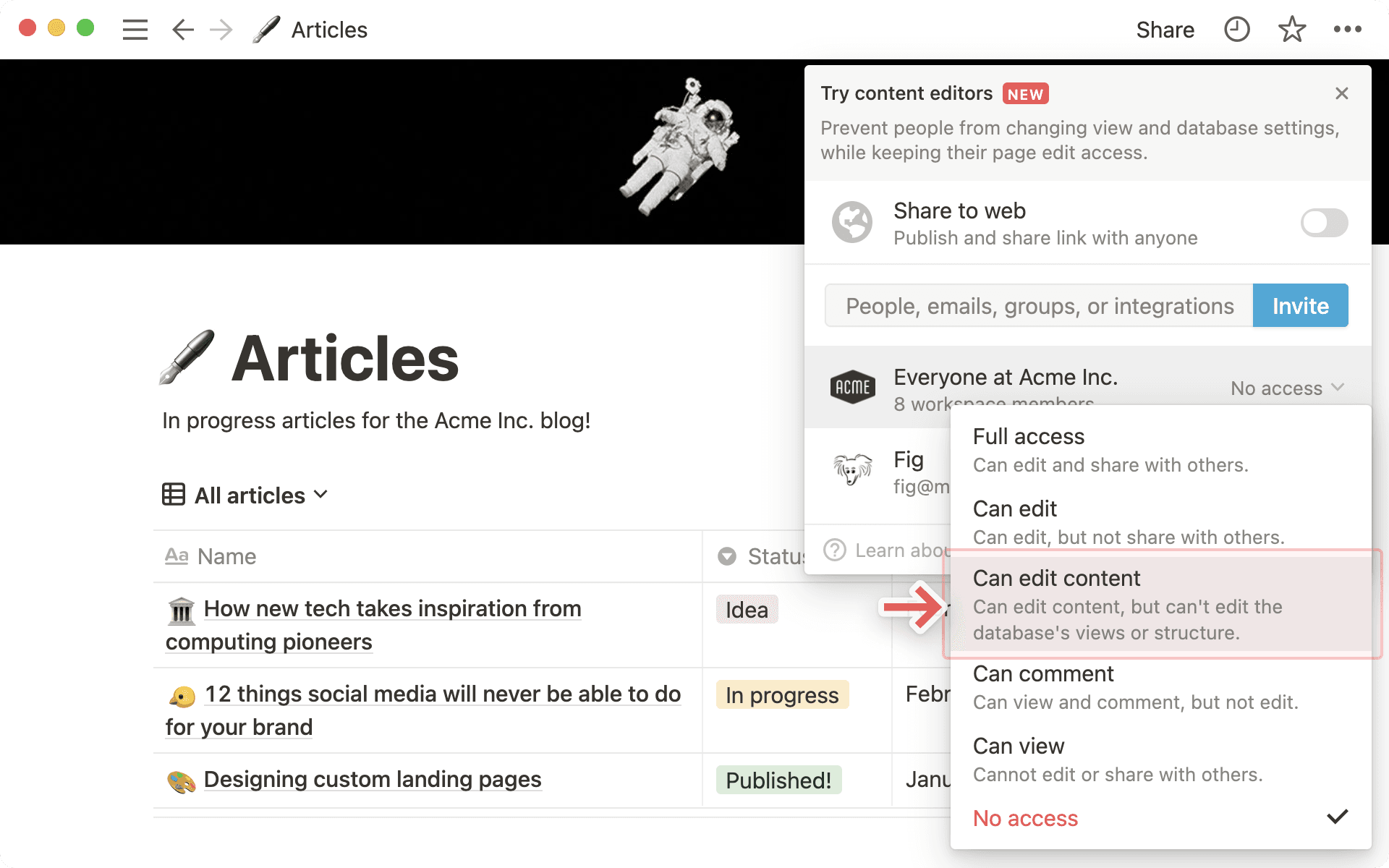
Notion databases give you and your teammates a customizable place to track engineering sprints, build company OKRs, manage content calendars, and more. As your team grows, the structure and properties of each database will become integral to your day-to-day operations, and any accidental edits or deletions can be quite disruptive. To prevent them, we suggest using the “Can edit content” permissions role to manage who can perform which actions in a database.

New to using Notion databases?
The new “Can edit content” permission level prevents accidental edits to the database’s structure — views, filters, property names, property types & more — while still allowing your colleagues to edit the content inside the database pages.
Within a database, content editors can edit individual entries to a database, including:
creating and deleting database entries (pages)
using existing database templates
editing database properties in a given row
Unlike full access users however, content editors can’t control database structure, including:
changing a database name, description, or icon
adding or removing a property, or changing a property's type
creating or changing views, including modifying sorts, filters, or groups
To get started using this feature, open the Share menu of a database and use the dropdown menu to change permission settings for people, groups, or even everyone at your company at once.
Giving teammates specialized permissions gives you peace of mind that your colleagues have just the right level of access — not too restrictive but not too permissive. Generally speaking, we recommend assigning some top-level database administrators with full access, and making it known to your team who these people are. For anyone else, a “Can edit content” role should suffice.
For example, consider restricting full access from all writers in a larger editorial calendar. Whether these are content developers, executives, or guest posters, permissions empower writers to follow the content management system you’ve put in place, without the unnecessary concern of modifying it for their peers. Even if these writers aren’t familiar with Notion, their mission is clear: add a publish date, indicate the status of the piece, and get to what they love — writing.

View more sharing and permission settings
Users with “Can edit content” permissions can’t add new select or multi-select property values, which can be helpful when tagging and grouping a larger dataset. For example, in a tasks database, you might want to use a status property to indicate the progress of a task. If all users have full access, it’s easy for someone to accidentally create a new status (whether by typo or misunderstanding) which can have cascading downstream effects for a project timeline.
When you customize the permissions for your team, you won’t need to be worried about this risk — and won’t be left spending an hour trying to figure out who knows the difference between “pending”, “in progress,” and “in development.” Data administrators can take it a step further, by adding synced blocks to database templates, explaining what each property means — perfect for big, ongoing projects and tracking where data definitions are really important.
While users with “Can edit content” permissions can’t change or create database views on the main instance of a database, they can create views on linked databases in other pages. To add a linked database view, simply type /linked and select your data source.
In the example of a single, shared “tasks” database, a user might want a view where they can see only their tasks assigned within the past week. To create this, just add a linked database block, select the tasks database source, and create a filter like normal. This will not add a view to the main database that everyone shares, but will provide the level of customizability your teammates might want. And of course, if everyone on the team wanted a custom view like this, there’s always the @me option to filter dynamically based on which user is viewing the content.
Page-level access lets you control who can view, edit, or comment on specific database rows. Each row in a Notion database is a full page with its own Share menu and access settings, so you can grant or restrict access at the row level, even if someone can’t access the whole database.
Set page-level rules based on Person properties (like “Assignee” or “Owner”) or “Created by” in the Share menu of the source database. If someone matches multiple rules, the highest level of access applies. This can be useful for:
Assign-only tasks— Contractors or external collaborators can only access rows assigned to them.
Sensitive deals— Sales teams can share specific CRM records with account teams without exposing the full pipeline.
For more details on row-level and page-level permissions, check out our reference article.
Go further on sharing and permissions
Permission groups are the worry-free way to give or restrict access to Notion pages — learn more in this guide.
Want a refresher on sharing and permissions in general? Check out this video.
Har vi missat något?