Link previews
Hoppsan! Det verkar som om din annonsblockerare hindrar videon från att spelas upp.
Titta på den på YouTube

See live, synced visualizations of links from popular platforms right in your workspace — no need to switch between apps or lose context 🔗
Gå till vanliga frågorLink previews allow you to see live, synced visualizations of links directly in Notion. This is currently supported for several platforms:
GitHub | Jira |
Slack | Asana |
Trello | Linear |
Zoom | Figma |
Adobe XD | Dropbox |
OneDrive & Sharepoint | Pitch |
Amplitude | Hex |
GRID | GitLab |
Box | Lucid (Lucidspark and Lucidchart) |
Whimsical | ClickUp |
Zendesk |

Note: Users will need edit access in SharePoint and OneDrive in order to use link previews.
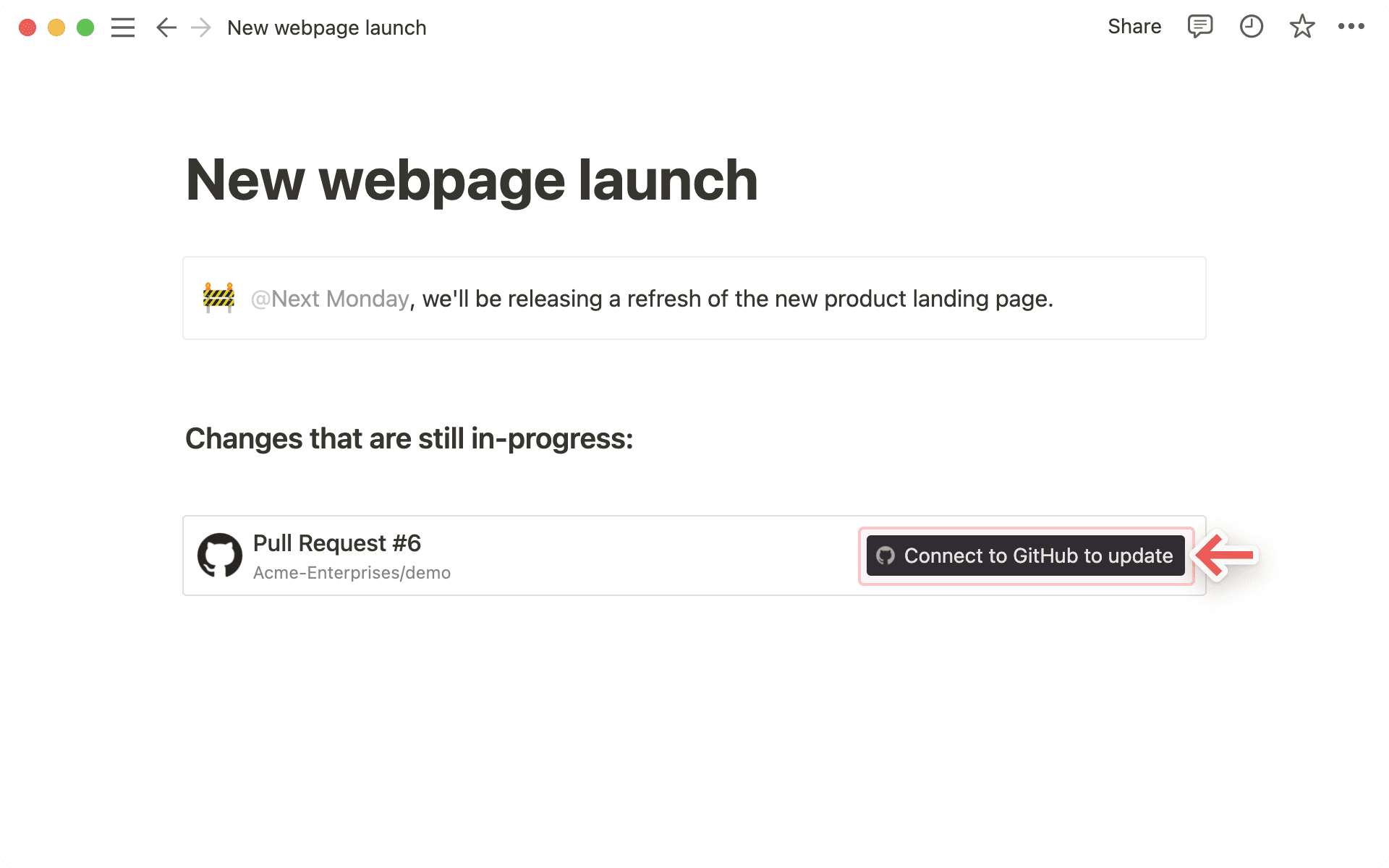
Copy a link from any of the supported platforms. Paste it into Notion and select
Paste as: Preview.The first time that you paste a link from one of these platforms, you'll see a button that asks you to connect to the app.
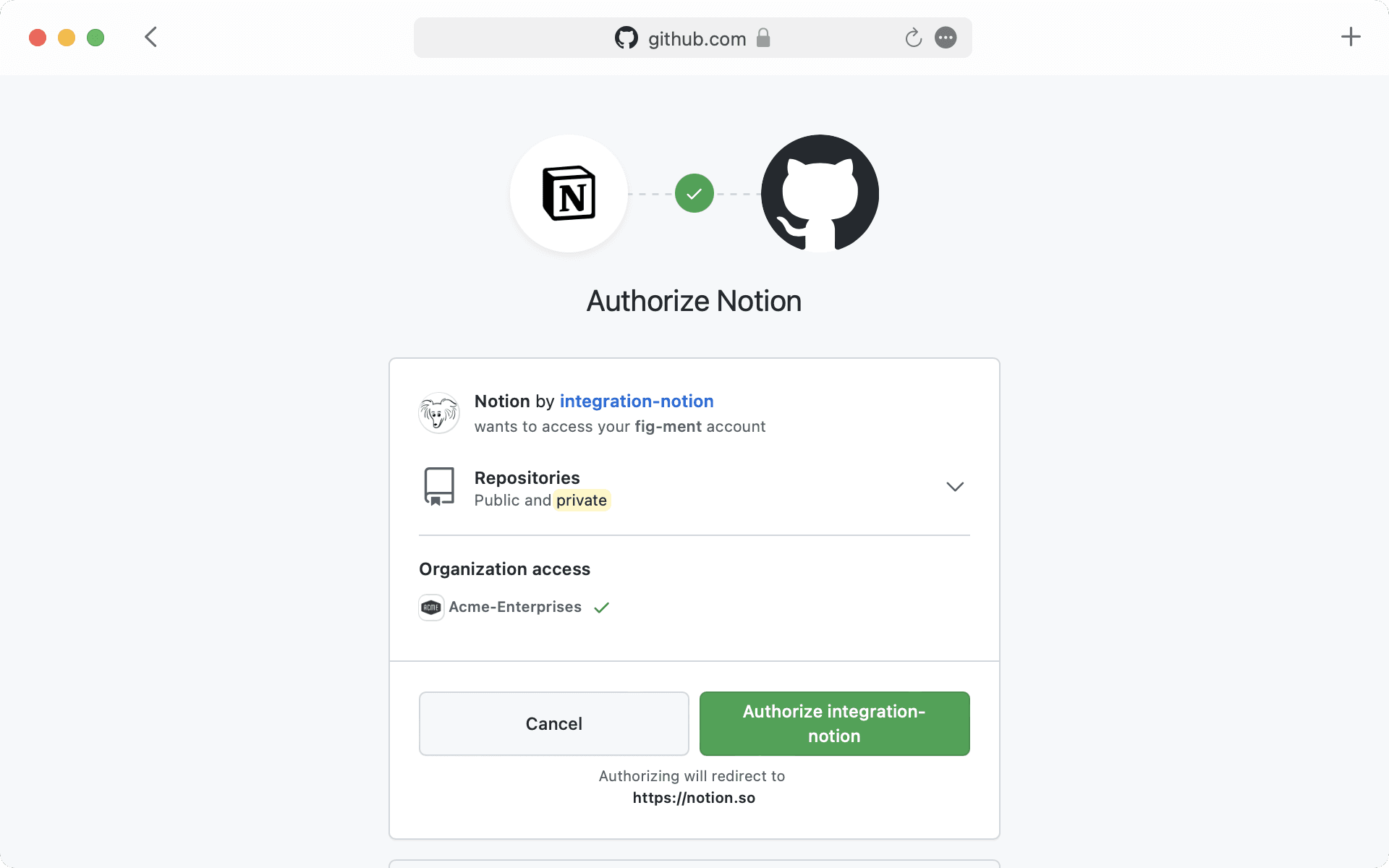
Once you click the button to connect, you'll be redirected to a browser window. Here, the app will ask for authentication and permission to display content in Notion.
When you've authenticated with the app, you'll see a detailed preview of the linked content. This preview updates as changes are made to any relevant fields.
Note: Once you've authenticated a connected app, anyone who can view your Notion page will be able to see corresponding content that you've pasted as a link preview.
In some cases, information will be abstracted (e.g., channel names from Slack private channels and DMs).
In addition to previews, you can also paste links from these platforms as mentions. These provide a more condensed visualization of the content in the link.
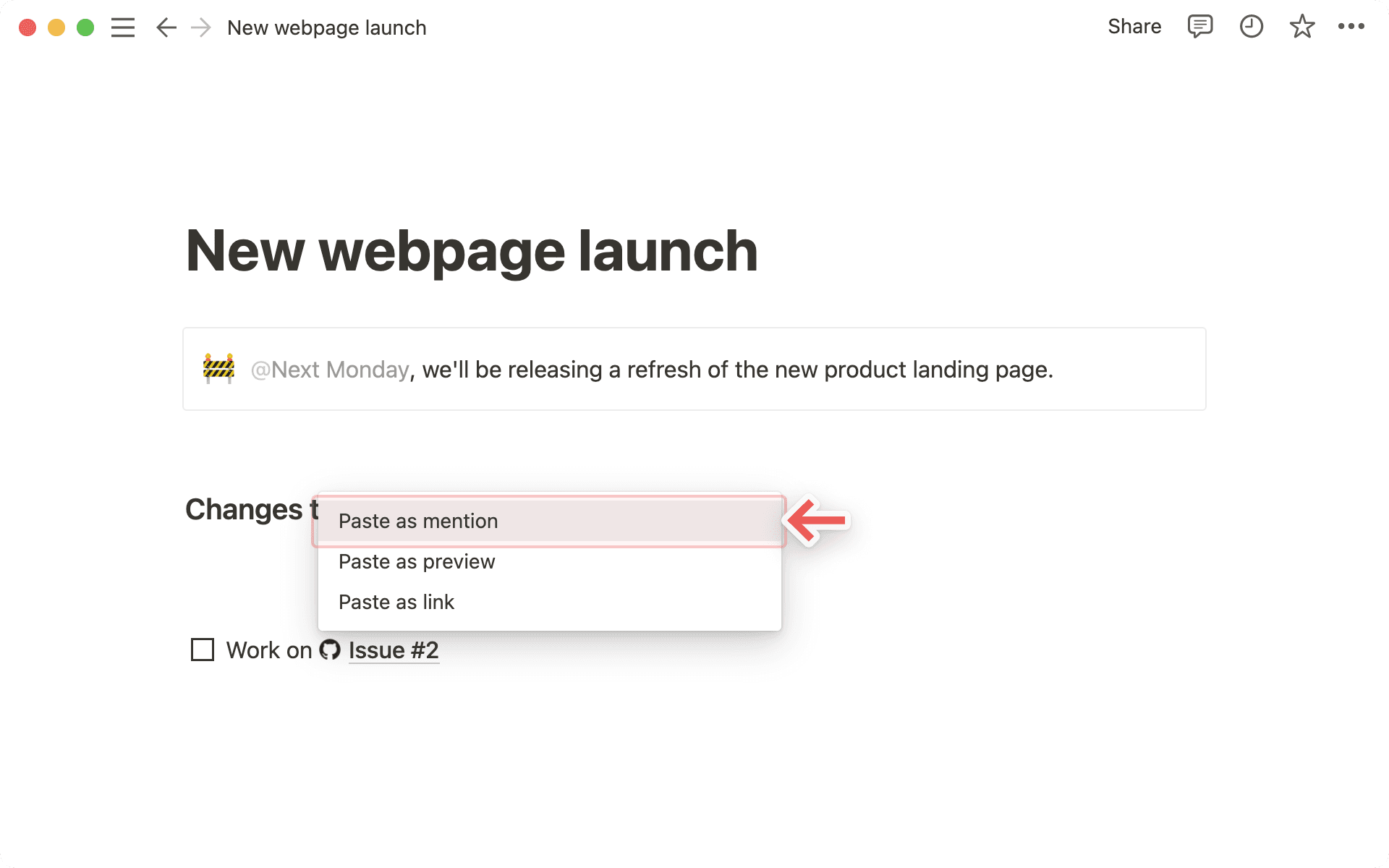
Copy a link from any of the supported platforms. Paste it into Notion and you'll see the option to
Paste as: Mention.Similarly to previews, you'll have to authenticate the app the very first time you paste a corresponding link in Notion. Click the button to open the authentication window and grant the necessary permissions. Afterward, you'll see the link mention pop up!

Tip: You can paste links as mentions directly inline, next to other text!
Vanliga frågor
I’m receiving an “Access denied” or “Content not found” error in my link preview.
I’m receiving an “Access denied” or “Content not found” error in my link preview.
There are two possible reasons for this:
You may not have authenticated with the account that has access. You can connect multiple accounts either through
Settings→My connections, or the error drop down.Your organization may have limited access to content via 3rd party connections or IP addresses. Please confirm with your workspace or organization administrator and ask to have Notion’s connection approved if this is the case. Here are instructions for specific connections: GitHub, Jira, Slack, Asana, Trello.
Can I add more than one login for a link preview connection?
Can I add more than one login for a link preview connection?
You can! You can do so via Settings → My connections. For the desired connection, select “Connect another account”.
Note: Some applications do not support multi-account login in the browser (e.g. GitHub), so you might need to logout of whichever account is currently logged in on your browser to be prompted to login with a different account.
We’ll determine which of your accounts to use to preview given resources and show an error if none of them are successful.
I’m receiving a general “Can’t load preview” error in my link preview.
I’m receiving a general “Can’t load preview” error in my link preview.
Run through these steps to try to resolve.
Confirm you’ve authenticated with the correct account for the resource.
Confirm no access restrictions for your organization.
Try to unfurl again.
Finally, if all else fails, reach out to support! Unfortunately, we cannot help resolve errors related to Access denied or Content not found. Please provide the following information when reaching out to support:
Connection you’re trying to use
Error message and code
URL you’re trying to preview (if possible)