Manage your Notion Sites
It's easy to view and manage all of your Notion Sites in one place 🌐
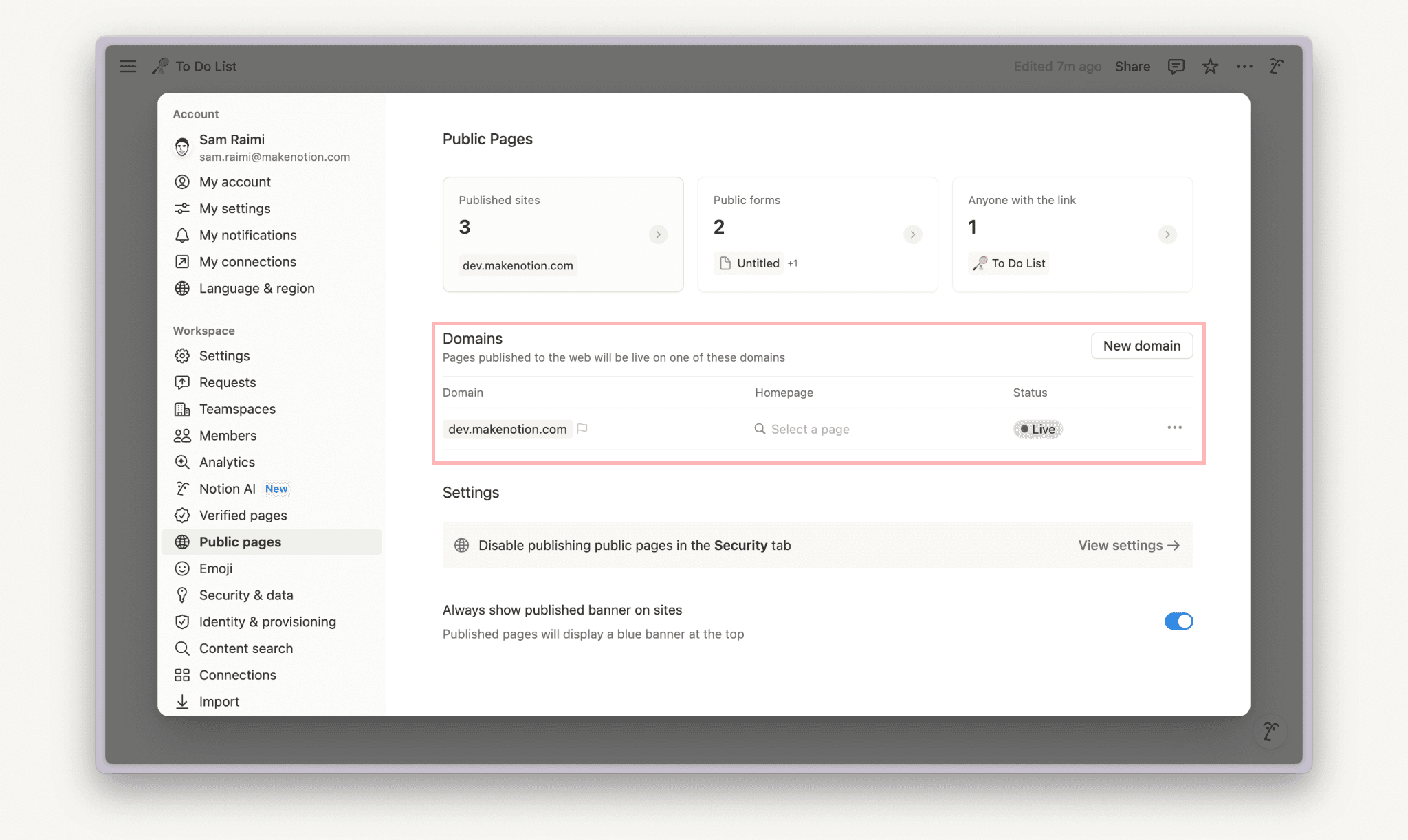
All workspace members can see and manage their workspace’s Notion Sites by going to Settings in their sidebar → Public pages.
From here, workspace members can:
See domains belonging to the workspace.
See Notion Sites that they can access through a teamspace, group, parent page, or a direct invitation.
See public forms and pages that anyone with a link can access.
Go to the published Site, copy its URL, or open up the publishing settings for it.
Workspace owners can do all of the above, as well as restrict the ability to publish Notion Sites for their workspace.

Looking to customize your Notion Site slug? To do this, open your published page in Notion, then select Share → Publish. Click on your current slug, enter your preferred slug, and click Save. Learn more about custom slugs here →
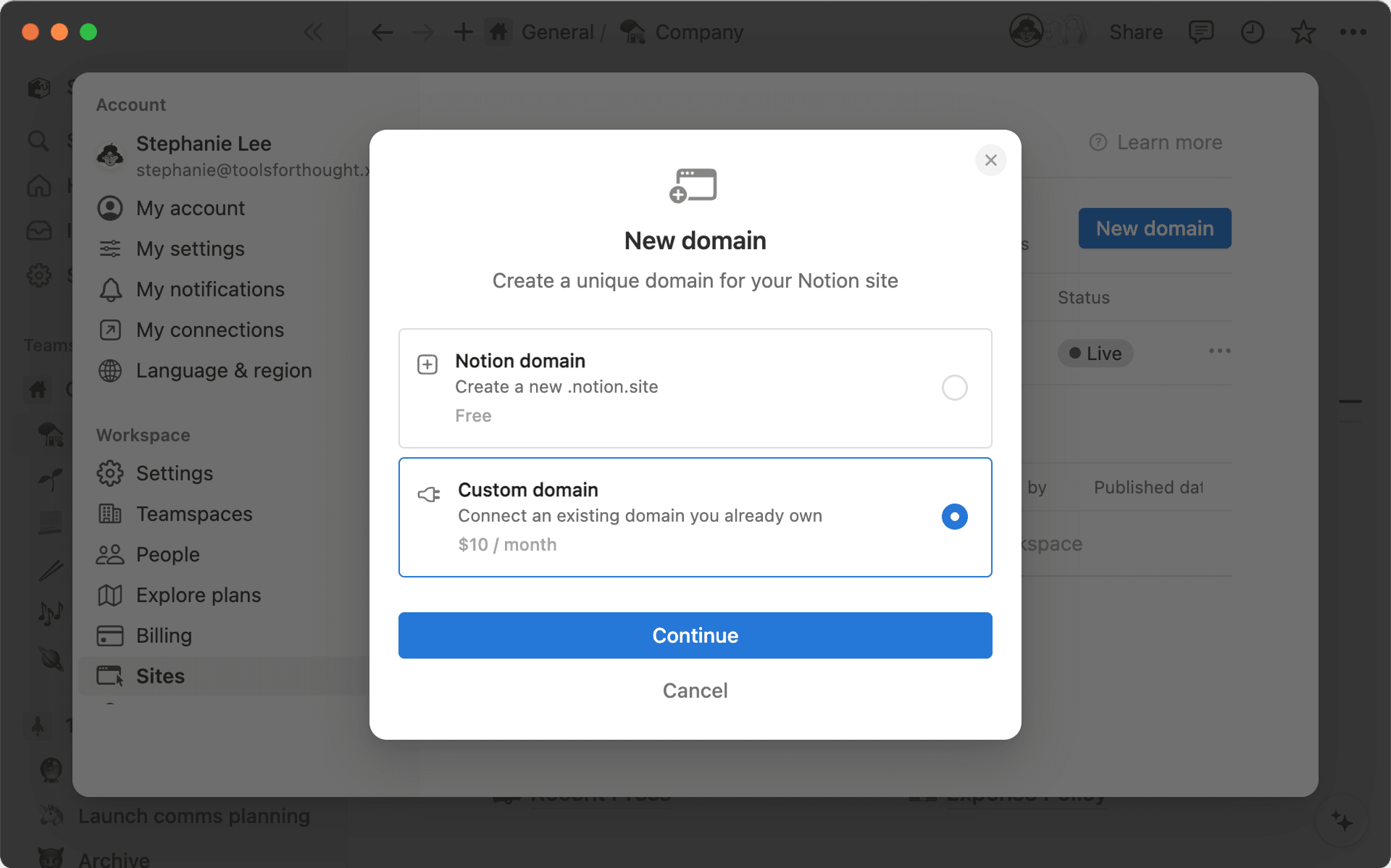
Create a new notion.site domain

Note: If you’re on a free plan, you can claim one notion.site domain. If you’re on a paid plan, you can claim up to five.
To customize and claim a new notion.site domain:
Go to
Settingsin your sidebar →Public pages.Next to
Domains, selectNew domain.Select
Notion domain→Continue.Enter your desired domain.
Select
Create domain.
Once you've set your own workspace domain, it will be displayed at the start of any public page URLs, such as acme.notion.site. The unique acme.notion.site URL is only used for publicly shared pages from within your workspace. Internally, you will still see the URL as app.notion.com/p/acme.
Note:
Notion reserves the right to reclaim a notion.site domain at any time, at its sole discretion.
Once you set a custom notion.site domain, you’ll need to continue to actively use your Notion workspace in order to maintain it. If you don’t, you might lose the domain.
If you switch to a new custom notion.site domain, any existing links starting with the previous domain (
previousdomain.notion.site) will no longer work! You'll need to re-share new links containing the new domain.
Connect a custom domain
Note: This feature is only available on paid plans.
Workspace owners on paid plans can connect their existing custom domains with Notion Sites by purchasing the custom domain add-on. Notion doesn’t sell custom domains or replace your current domain provider — the add-on allows you to use Notion Sites with a custom domain you already own. Learn more about this feature here →
When you use a custom domain with Notion Sites, you’ll also have the option to remove any Notion branding for that custom domain. Learn more about customizing your Sites in this article →
Change or assign your domain's Homepage
Note: This feature is only available on paid plans.
To update the Homepage for a domain:
Go to
Settingsin your sidebar →Public pages.Find the domain whose Homepage you want to update, then under
Homepage:If you don’t already have a Homepage assigned, select
Select a page, then search for and select a page. Only pages that have already been published as a Notion Site under this domain will appear in this search.If you already have a Homepage assigned but want to change it, select the pencil icon, then search for and select a page.
If you already have a Homepage assigned but want to clear it, select
X.
Update, validate, or delete a domain
To update, validate, or delete a domain:
Go to
Settingsin your sidebar →Public pages.Next to your desired domain, select
•••.From here, select:
Updateto change yournotion.sitedomain name. Any changes will apply to all of your live Notion Sites associated with this domain. Enter a new name and selectSave changes. If you’re trying to update your custom domain name, you’ll have to delete the existing one and add a custom domain again, using the correct name.Deleteto remove your domain. If any Notion Sites have been published to the domain you’re trying to delete, you’ll be asked to unpublish those Sites before proceeding.Validateto verify your custom domain.
Note:
If your domain has a flag next to it in your Sites settings, you won’t be able to delete it. This is because it’s the default domain of your workspace that was created when your workspace was created.
When you delete a custom domain, you'll still be able to use it with Notion Sites until the end of your current billing cycle. After that time, you will no longer be charged for that custom domain.
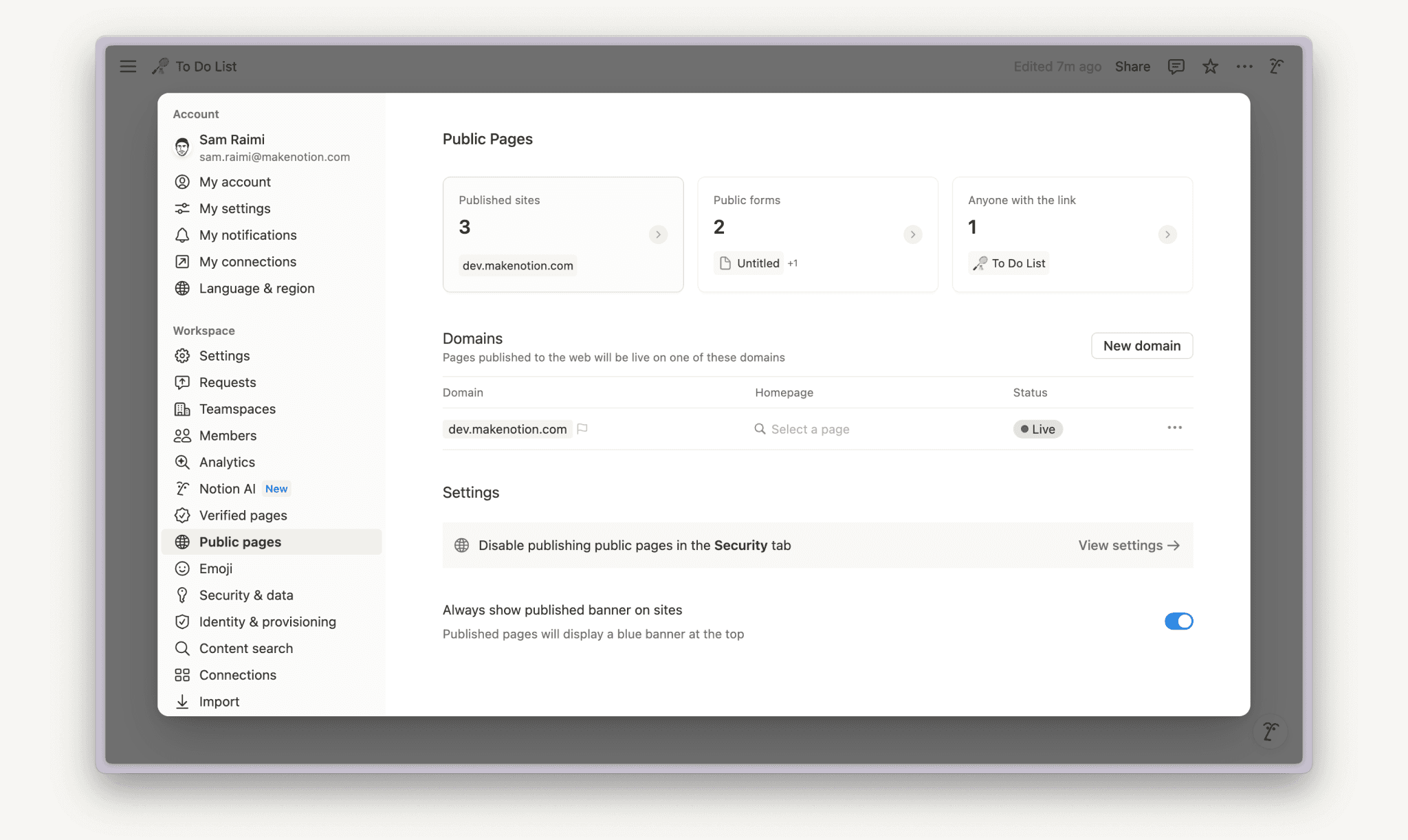
Go to Settings in your sidebar → Public pages to see which of your Notion pages have been published as Notion Sites. From here, you can:
See and manage all of your public pages, including published sites, public forms, and pages that anyone with a link can access.
See the names of your Notion pages, the domain they’re associated with, who published them, and when they were published.
Select
•••next to each published page to view the page, copy its link, or go into its publishing settings.