Suggested edits
Collaborate with others by suggesting edits to content that you’re working on together 📝

Note: If you’re not able to suggest edits on a page, it may be that the page is locked, or that you don’t have permissions to do so. You must have Can comment access and above to suggest edits.
To go into suggesting mode:
Select
•••at the top of a page.Select
Suggest edits.
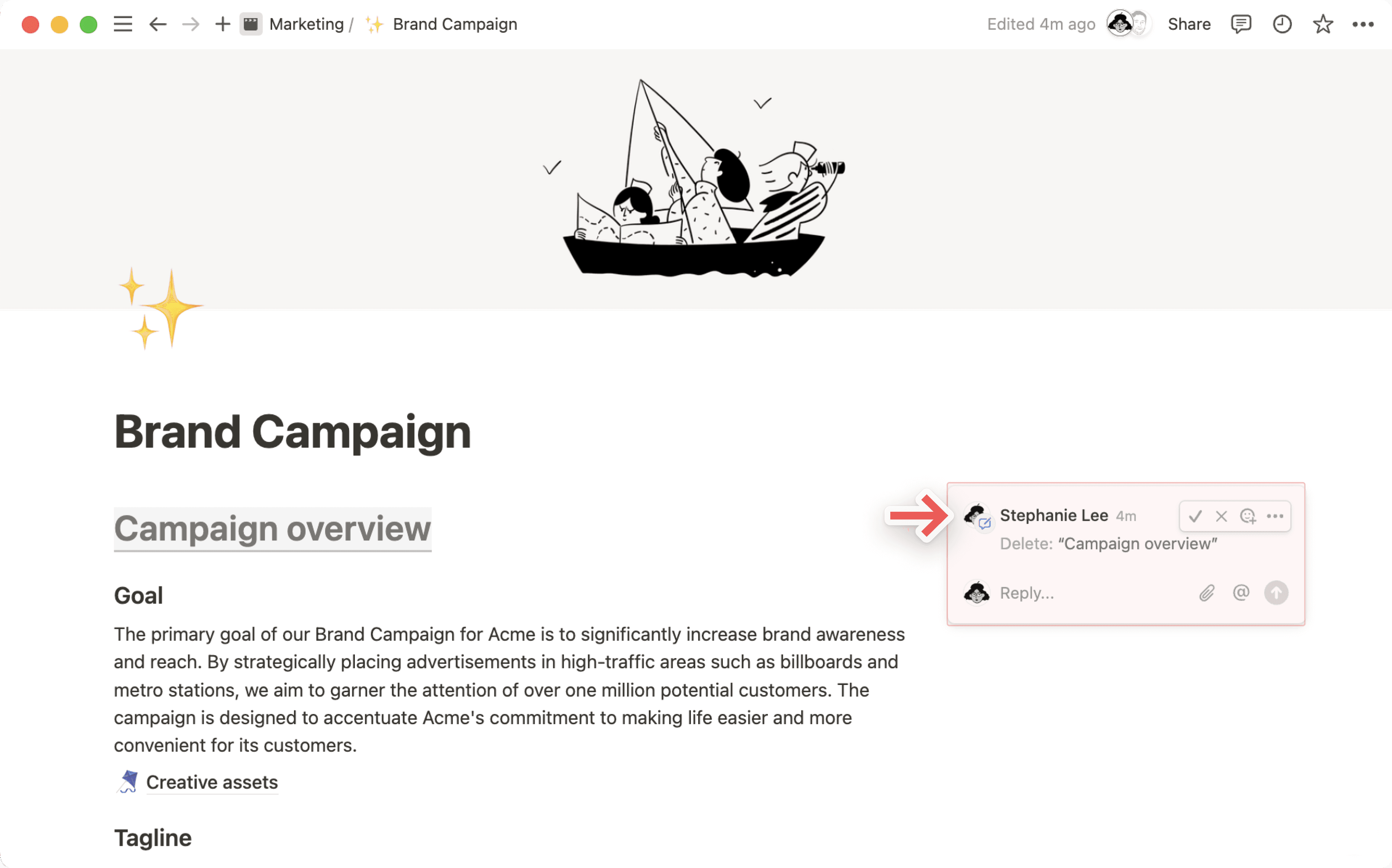
Once you’re in suggesting mode, you’ll see Suggesting at the top of the page. Type text into the page to suggest adding it, or delete text to suggest removing it.
Your suggestions will appear in the side of the page. You can click on a suggestion and add any more thoughts as comments underneath.
Once you’re done suggesting edits, you can get out of suggesting mode by selecting the X next to Suggesting at the top of the page. Alternatively, you can select ••• at the top of a page and select Stop next to Suggest edits.
When you suggest edits on someone’s page, they’ll receive an inbox notification.
Note:
At this time, you can only suggest text, to-do list, heading, bulleted list, and numbered list blocks.
You can’t make suggestions to inline databases, database properties, or pages that are open in peek view.

If you’d like to keep others from being able to suggest edits on your page, lock the page by selecting ••• at the top and toggling on Lock page.
Once someone has suggested edits on your page, you can:
Hover over a suggestion and select
✔️to accept the edit. Your page’s contents will update accordingly.Hover over a suggestion and select
❌to reject the edit. The suggestion will disappear.React to the suggestion with an emoji.
Click on the suggestion to reply with a comment.