Use Notion Calendar with Notion
Notion Calendar and Notion work together to create a seamless experience as you go from meetings to notes to projects 🪄
Gå till vanliga frågorYou can integrate Notion Calendar with Notion to:
Add Notion pages and AI Meeting Notes to your events.
View and manage Notion databases in your calendar, as long as the databases have a date property.
To connect your Notion workspaces to Notion Calendar:
Open Notion Calendar on desktop or web.
Go to
Settings.Under
Notion workspaces, selectAdd Notion workspace.Give Notion Calendar access to Notion. If the integration is successful, you’ll see it appear in your settings.

Note:
If you have multiple workspaces, you need to connect them individually to Notion Calendar, even if those workspaces are associated with the same email address.
A workspace admin can’t turn on Notion Calendar for everyone in their Notion workspace. Notion Calendar and Notion must be connected at the user level.
Don’t worry — connecting Notion Calendar and Notion doesn’t mean your company will have access to your calendars.
When you create an event in Notion Calendar, you’ll see the field Add AI meeting notes in the event. This gives you a different options to create AI Meeting Notes for the event:
Create new AI Meeting Note: This will open Notion and create a new meeting page with the event name, date, and time in the title.
Add note to existing page: Choose from different pages within the connected Notion workspace.Change workspace: Select a workspace to choose a default database to store your AI Meeting Notes.
Note: You can set your default meetings database in Notion or Notion Calendar. This setting syncs between both apps.
Learn more → AI Meeting Notes
By default, meeting notes you create are private to you. You can choose to automatically share notes created from a Notion calendar event with meeting participants who are members of your workspace.
To do so, go to Settings → Notion AI and toggle on Auto-share with internal calendar event participants.
You can always manually adjust sharing settings after creation. Learn more about how to share AI meeting notes here.
Note: To be connected to Notion Calendar, a Notion database must have a date property.
You might use Notion databases to track important projects or events. You can bring these events directly into Notion Calendar so you can see all of these dates in one place!
Who can connect a Notion database to Notion Calendar?
To connect a Notion database to Notion Calendar, you must have at least Can view access to the database.
To edit or add pages in a database via Notion Calendar, you must have at least Can edit content access to the database. Otherwise, you’ll only be able to view database pages in your calendar.
Add a Notion database to Notion Calendar
To add a Notion database to Notion Calendar:
At the bottom of the left sidebar of Notion Calendar, find the Notion workspace that contains the database you want to see in your calendar.
Hover over the calendar’s name, then select
•••→Add Notion database. Search for and select the database you want to add to your calendar.Dates from your database will appear in your calendar. If your database has multiple date properties, you’ll need to select a primary property that will be used to populate your calendar.
Alternatively, you can use the keyboard shortcut O, or enter cmd + K and type “show Notion database”.
You can also add a Notion database to Notion Calendar from inside Notion. Open your database in Notion, click on the name of your database view, and select Manage in Notion Calendar.
If you want to add an additional view from a database you’ve already connected to Notion Calendar:
Find the database’s name in the left sidebar of Notion Calendar.
Select
•••next to the database’s name →Add Notion database view.Select the database view you want to add.
Note:
You can only add a database while using Notion Calendar for desktop or web.
At the moment, you can only view your Notion database in Notion Calendar, not in Google or iCloud calendar.
You can add up to 20 databases to Notion Calendar.
While you can connect an existing Notion database to Notion Calendar, you can’t turn your Notion Calendar into a Notion database at this time.
If you’re not able to see a specific database page in Notion Calendar even though you have access to view the database, it’s possible that the database page has specific permissions that are different from the permissions for the rest of the database.
Once you’ve connected a Notion database to Notion Calendar, you can manage all of that database’s pages directly from inside your calendar.
To edit an existing database page from your calendar grid:
Select a database item.
In the right context panel, change the title, date, and time of your event. You can also edit any of the item’s select (but not multi-select) properties, like a status property. You can even move the item to another calendar, database, or database view.
You can even manage entire databases using a handy list panel on the left side of Notion Calendar. This can be useful if you’ve integrated a task database with Notion Calendar, and you want to assign tasks to specific dates or update task information without leaving your calendar.
To manage a database in Notion Calendar:
Find and click the name of a Notion database in your left sidebar.
A new panel will open up showing you all the pages in your database.
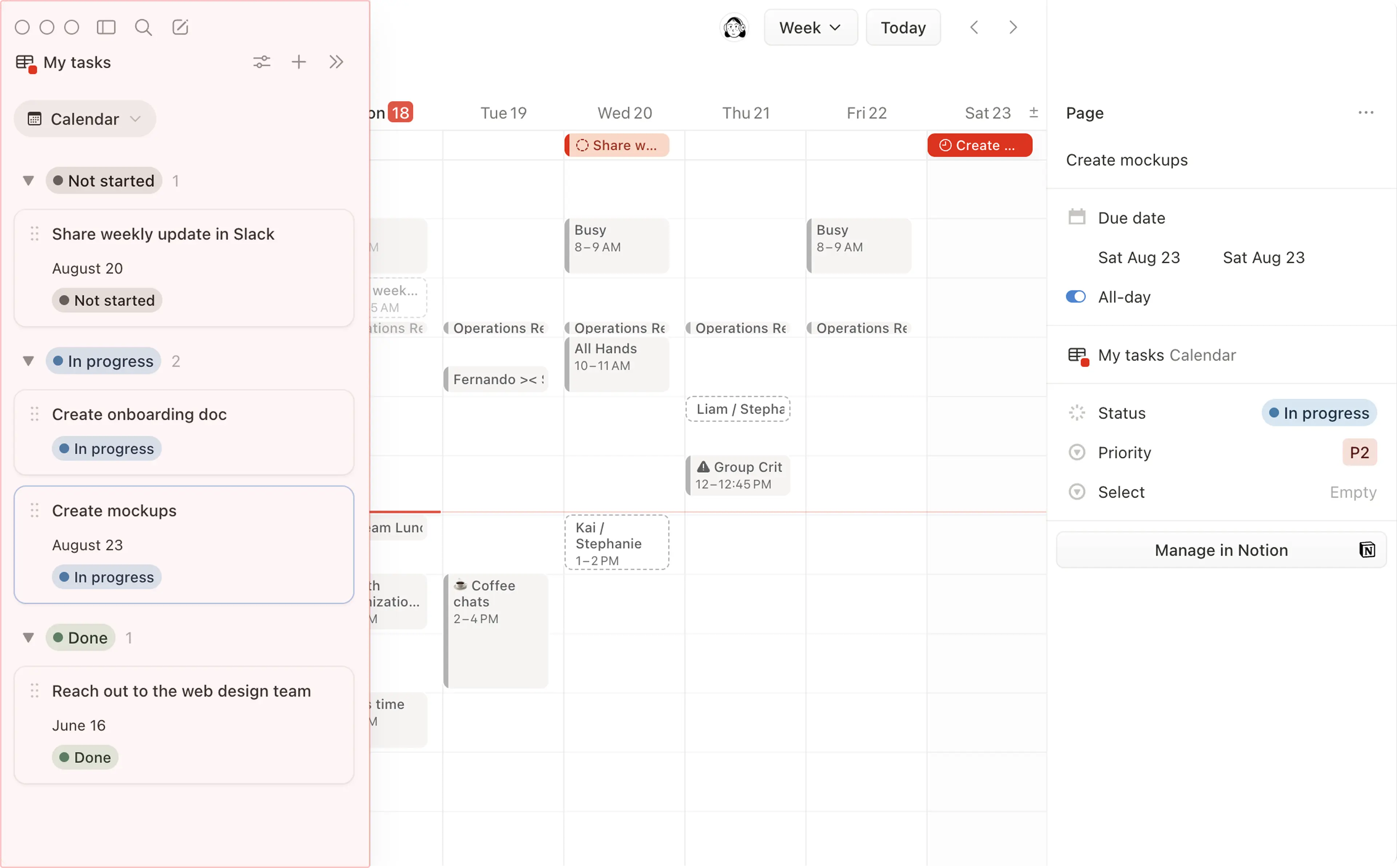
From this panel, you can:
Click
+at the top of the panel to create a new page in the database. You’ll only be able to do this if you have access to edit the original database in Notion.Drag a database item into your calendar grid, or click on it to edit its details from the right context panel. Alternatively, you can hover over the page in the list panel and select
✏️to quickly edit the page’s properties.Note: The following properties can be managed via Notion Calendar:
Title
Date
Status
Select and multi-select
Database page icon
Text (rich text formatting is supported, but functions and mentions are not)
Checkboxes
ID (read only)
Person (read only)
Click the slider icon at the top of the panel to:
Change the
Colorof the database view as it appears in your calendar.Change
Status filterso you can see, for example, only pages that are still in progress.Change
Date filterso you can see, for example, only pages that don’t yet have a date assigned to them.Change primary propertiesthat you want Notion Calendar to look at for that database. This is especially helpful if your database has multiple date or status properties, and you want to view your database using a different date or status property.
Open the dropdown next to your current database view and add another existing database view, or
Create view in Notion.
Any changes you make will be reflected in the original database in Notion.
Note:
If the dates for a database you connect to Notion Calendar are generated using the Formula, Created time, or Last edited time properties, those dates will be read-only in Notion Calendar. In other words, you can’t edit those dates from inside your calendar.
If you duplicate a Notion database item in Notion Calendar, a new page will be created in your Notion database with the same title and date, but it won’t duplicate any other content inside the original page.
If you move a database item from one workspace to another inside of Notion Calendar, a new page will be created in the destination workspace with the same title and date. The original page will be archived in the source Notion workspace and can be restored.
If you want all new events you create in Notion Calendar to be added to your Notion database, change your default calendar to the database. To do this, go to Settings → Calendars → Default calendar and pick the database you want to set as your default. On desktop, you can also set a default calendar by clicking the square next to the database’s name in the left sidebar.
To remove a database from Notion Calendar:
Find the database’s name in the left sidebar of Notion Calendar.
Select
•••next to the database’s name →Remove view from list.
Your calendar events can be viewed and joined directly from inside Notion. In Notion, go to Home in your sidebar to view your Upcoming events widget. If you haven’t already used Notion Calendar with Notion, you’re logged out of Notion Calendar, or you’re using the widget in a new or different Notion workspace, you can select Connect Notion Calendar in the widget to set up your calendar.
Note: If you’re using Notion for desktop, you may be prompted to sign into your Notion account on the web to set up the Upcoming events widget.
This widget can be customized to show the calendars and events that you want. You can connect multiple Notion Calendar accounts to the Upcoming events widget in Home. If you’re in multiple Notion workspaces, don’t worry — you can adjust your Upcoming events widget differently for each! Learn more in this article.
If you want to change your linked Notion account, or you’ve lost access to the Notion account that you use to log into Notion Calendar, follow the steps here →

Vanliga frågor
Is it possible to add my Notion Calendar events to a Notion page?
Is it possible to add my Notion Calendar events to a Notion page?
At this time, you can’t bring calendars like Notion Calendar or Google Calendar into Notion. If you’d like to create and manage calendars from inside a Notion page, you can learn more about how to do that here →