Link previews

See live, synced visualizations of links from popular platforms right in your workspace — no need to switch between apps or lose context 🔗
الانتقال إلى الأسئلة الشائعةLink previews allow you to see live, synced visualizations of links directly in Notion. This is currently supported for several platforms:
GitHub | Jira |
Slack | Asana |
Trello | Linear |
Zoom | Figma |
Adobe XD | Dropbox |
OneDrive & Sharepoint | Pitch |
Amplitude | Hex |
GRID | GitLab |
Box | Lucid (Lucidspark and Lucidchart) |
Whimsical | ClickUp |
Zendesk |

Note: Users will need edit access in SharePoint and OneDrive in order to use link previews.
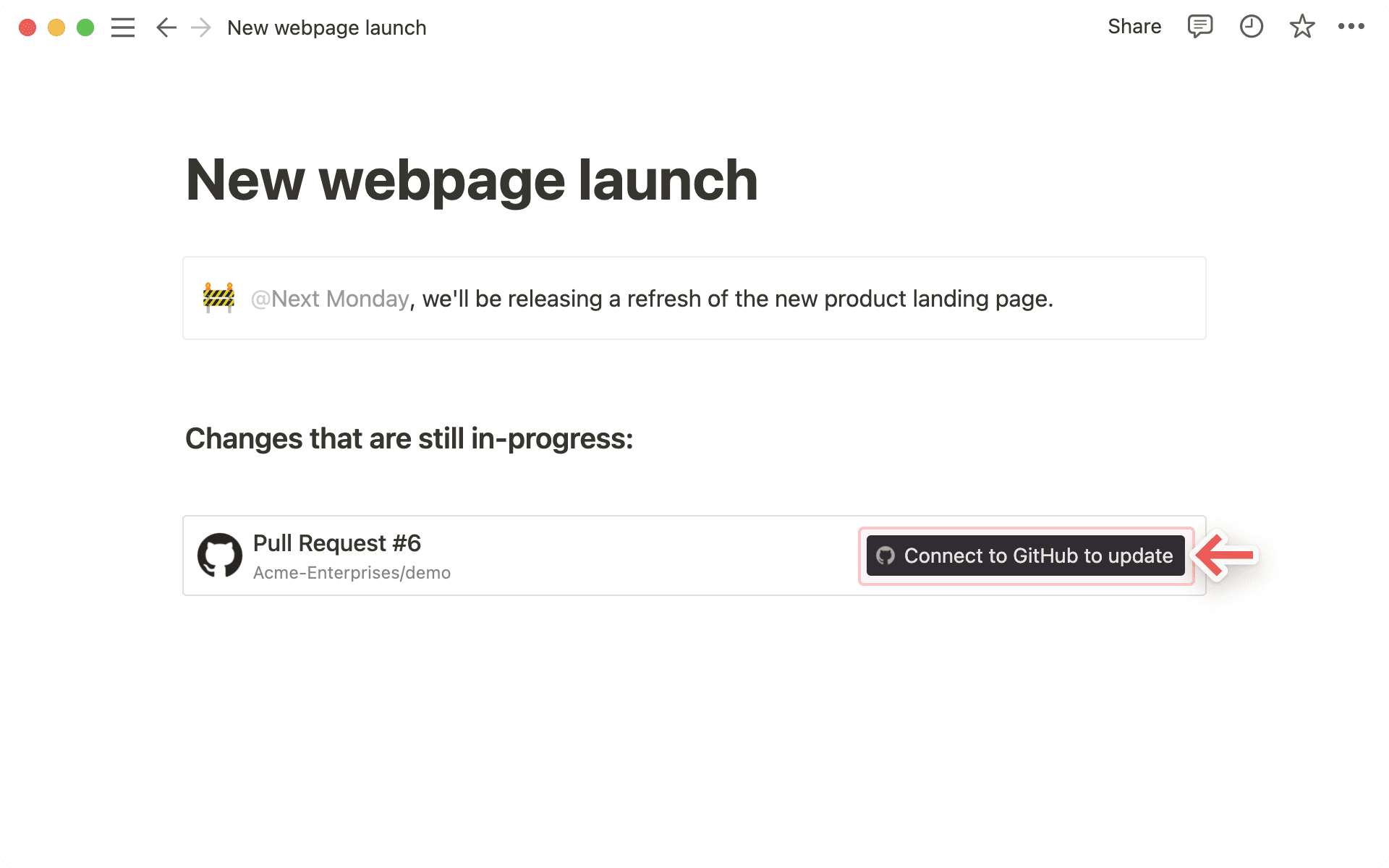
Copy a link from any of the supported platforms. Paste it into Notion and select
Paste as: Preview.The first time that you paste a link from one of these platforms, you'll see a button that asks you to connect to the app.
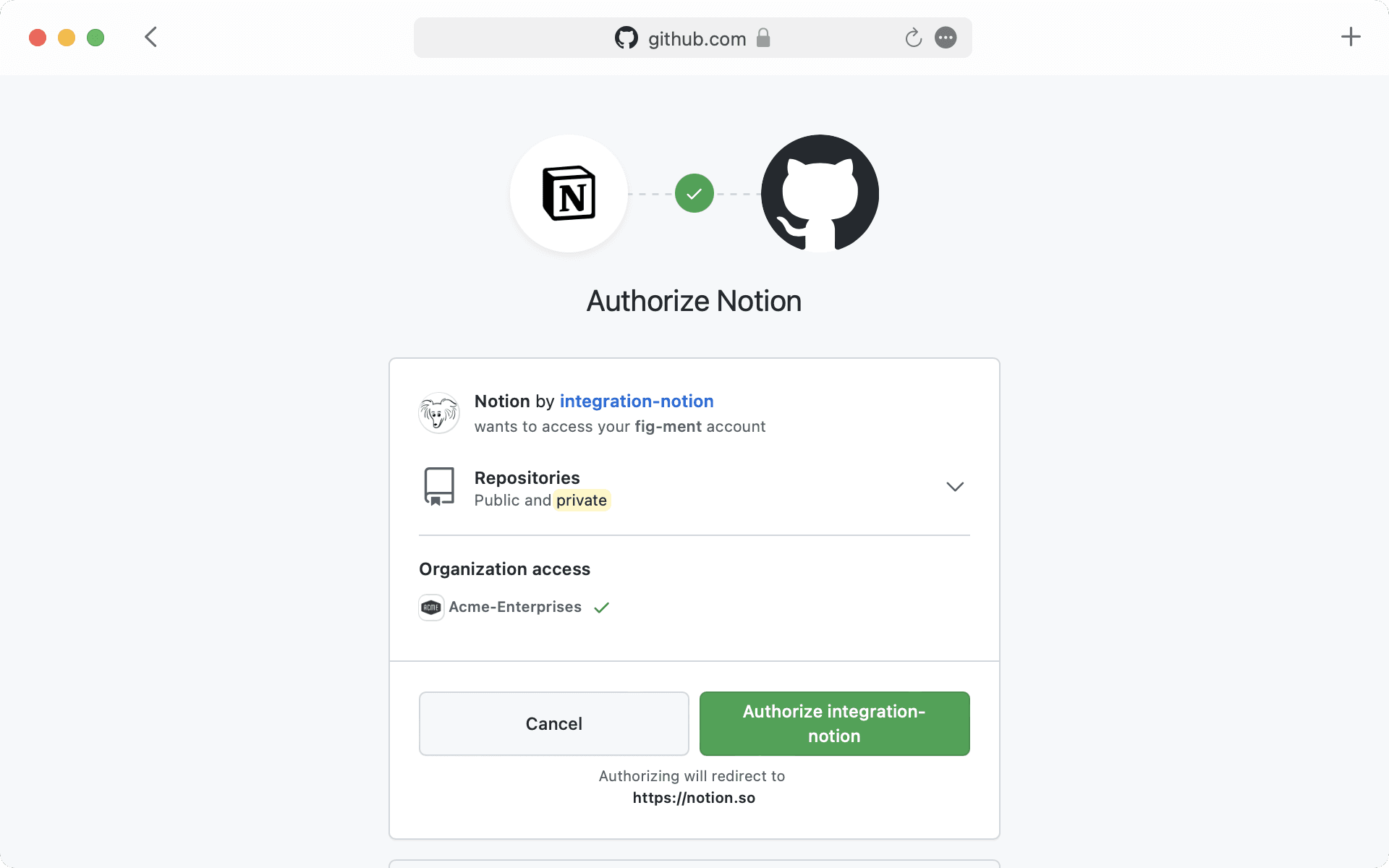
Once you click the button to connect, you'll be redirected to a browser window. Here, the app will ask for authentication and permission to display content in Notion.
When you've authenticated with the app, you'll see a detailed preview of the linked content. This preview updates as changes are made to any relevant fields.
Note: Once you've authenticated a connected app, anyone who can view your Notion page will be able to see corresponding content that you've pasted as a link preview.
In some cases, information will be abstracted (e.g., channel names from Slack private channels and DMs).
In addition to previews, you can also paste links from these platforms as mentions. These provide a more condensed visualization of the content in the link.
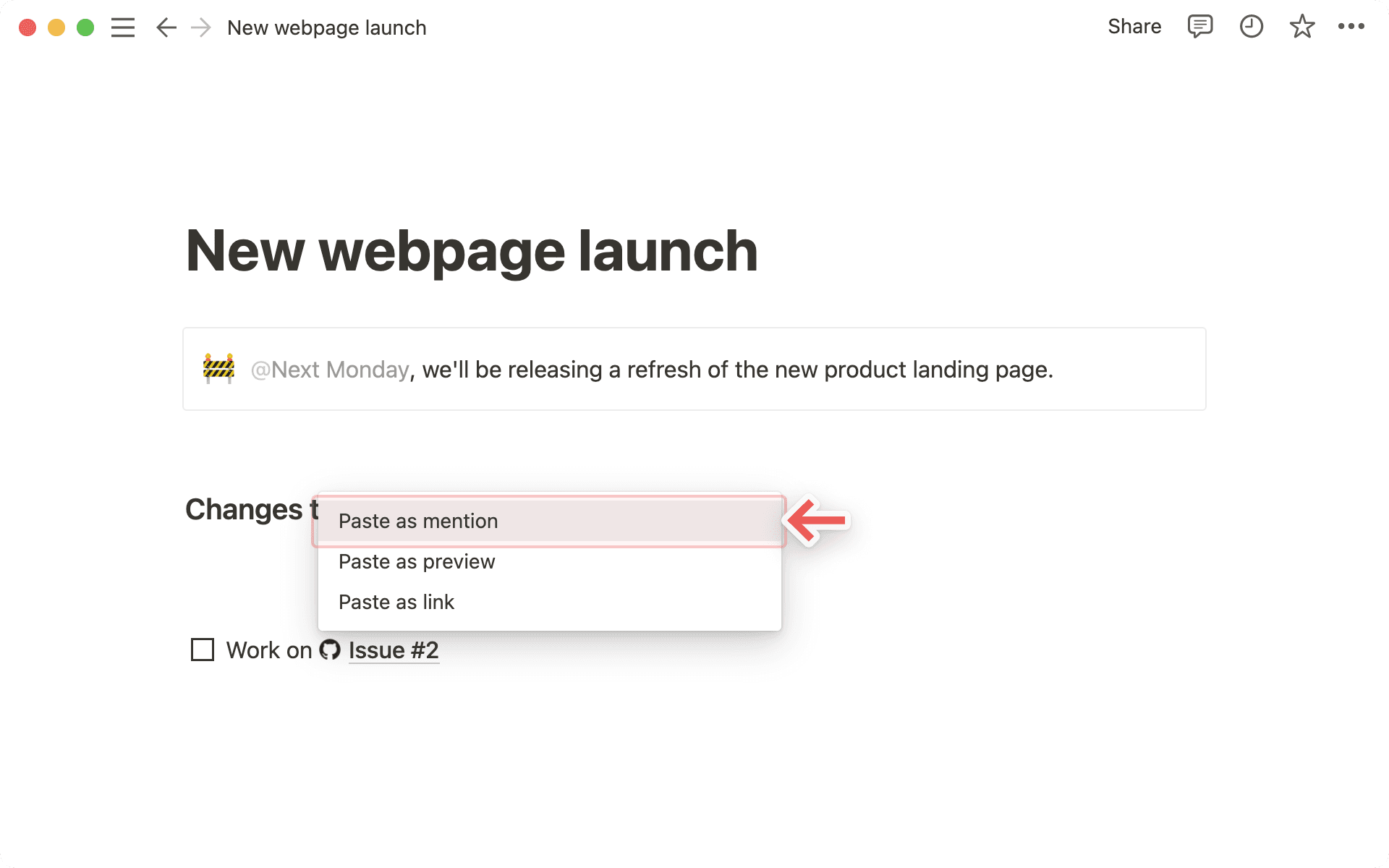
Copy a link from any of the supported platforms. Paste it into Notion and you'll see the option to
Paste as: Mention.Similarly to previews, you'll have to authenticate the app the very first time you paste a corresponding link in Notion. Click the button to open the authentication window and grant the necessary permissions. Afterward, you'll see the link mention pop up!

Tip: You can paste links as mentions directly inline, next to other text!
الأسئلة الشائعة
أتلقى خطأ "تم رفض الوصول" أو "لم يتم العثور على المحتوى" في معاينة الرابط الخاص بي.
أتلقى خطأ "تم رفض الوصول" أو "لم يتم العثور على المحتوى" في معاينة الرابط الخاص بي.
هناك سببان محتملان لذلك:
قد لا تكون قد قمت بالمصادقة باستخدام الحساب الذي يمتلك حق الوصول. يمكنك ربط حسابات متعددة إما من خلال
الإعدادات←عمليات الربط الخاصة بي، أو من القائمة المنسدلة للخطأ.
هل يمكنني إضافة أكثر من تسجيل دخول لعملية ربط معاينة الرابط؟
هل يمكنني إضافة أكثر من تسجيل دخول لعملية ربط معاينة الرابط؟
نعم يمكنك ذلك! يمكنك القيام بذلك عبر الإعدادات ← عمليات الربط الخاصة بي. بالنسبة لعملية الربط المطلوبة، حدد "ربط حساب آخر".
ملاحظة: لا تدعم بعض التطبيقات تسجيل الدخول بحسابات متعددة في المتصفح (مثل GitHub)، لذا قد تحتاج إلى تسجيل الخروج من أي حساب مسجل حالياً في متصفحك ليُطلب منك تسجيل الدخول بحساب مختلف.
سنحدد أيًا من حساباتك سنستخدم لمعاينة الموارد المحددة، وسنعرض خطأً إذا لم ينجح أي منها.
أتلقى خطأً عامًا "تعذر تحميل المعاينة" في معاينة الرابط الخاص بي.
أتلقى خطأً عامًا "تعذر تحميل المعاينة" في معاينة الرابط الخاص بي.
اتبع هذه الخطوات لمحاولة الحل.
تأكد من أنك قمت بالمصادقة باستخدام الحساب الصحيح للمورد.
تأكد من عدم وجود قيود وصول لمؤسستك.
حاول توسيع الرابط مرة أخرى.
أخيرًا، إذا فشل كل شيء آخر، تواصل مع الدعم! للأسف، لا يمكننا المساعدة في حل الأخطاء المتعلقة بـ الوصول مرفوض أو المحتوى غير موجود. يرجى تقديم المعلومات التالية عند التواصل مع الدعم:
عملية الربط التي تحاول استخدامها
رسالة الخطأ ورمزه
رابط URL الذي تحاول معاينته (إن أمكن)