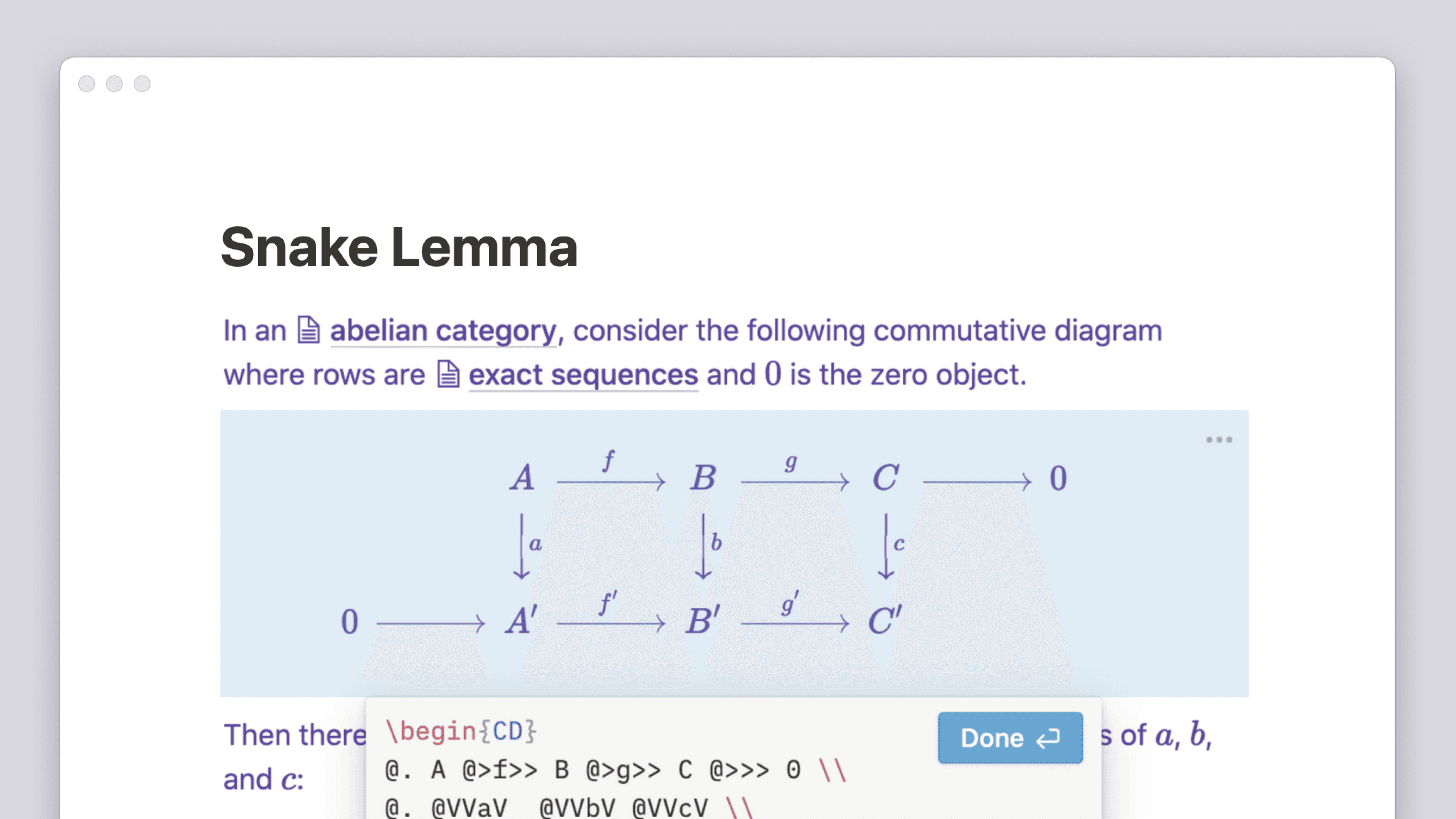
Code blocks

Code blocks are useful to demonstrate programming concepts, share code with other developers, or maintain your own library of code snippets. They also make it a breeze to copy any amount of code to your clipboard to use elsewhere 🕹️
On any Notion page, you can create a code block to display code so that it's broken out from the rest of your content and formatted by language.
Click the
+that appears to the left when you hover over a new line. ChooseCodeand pressenter. Alternatively, type/codeand pressenter.With your new code block in place, click inside it to type or paste your code.
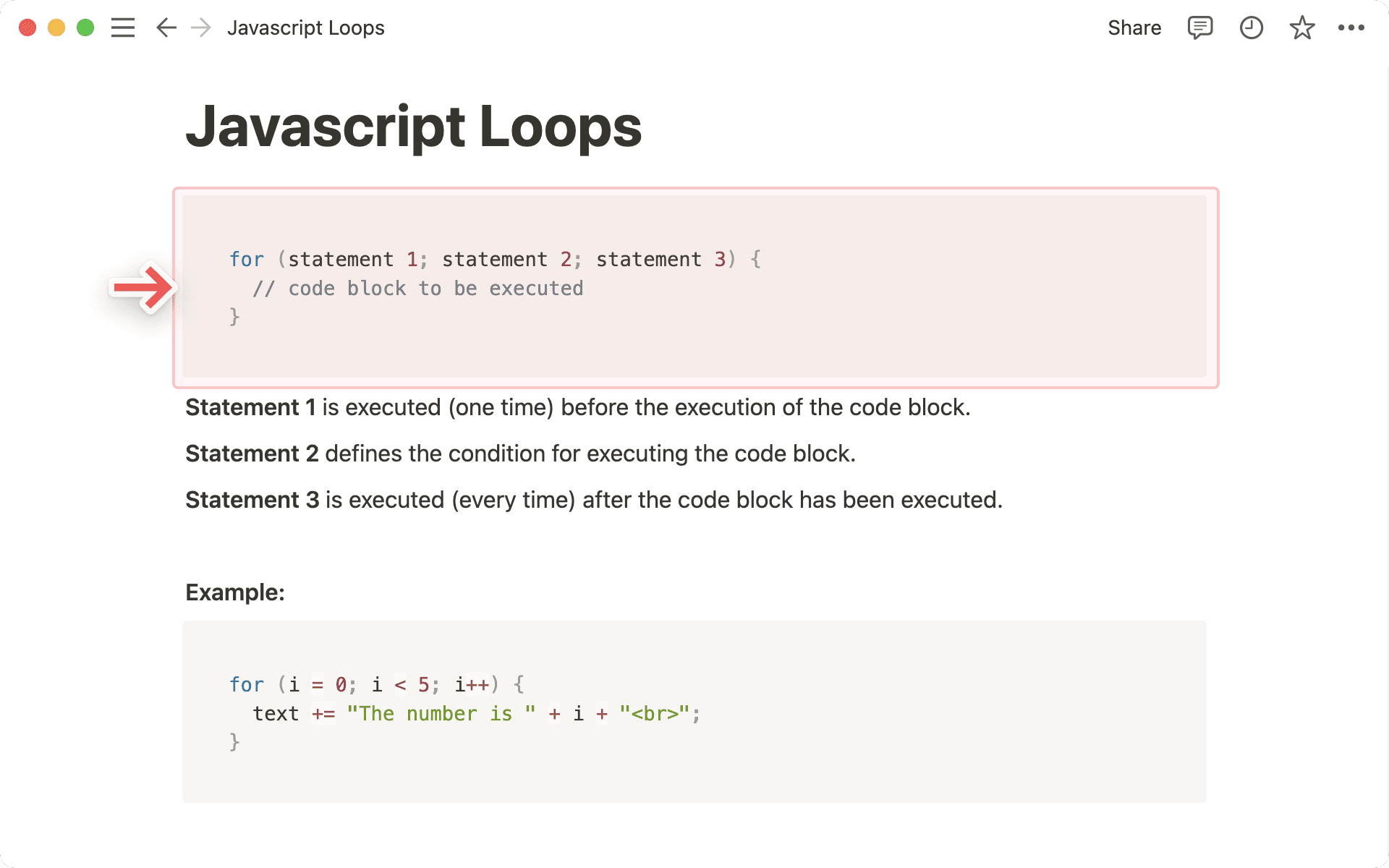
We support syntax highlighting for a number of programming languages. To change the display language of your code:
Click the name of the language at the top left of the code block.
Type in the name of your programming language to search, then press
enterto select.
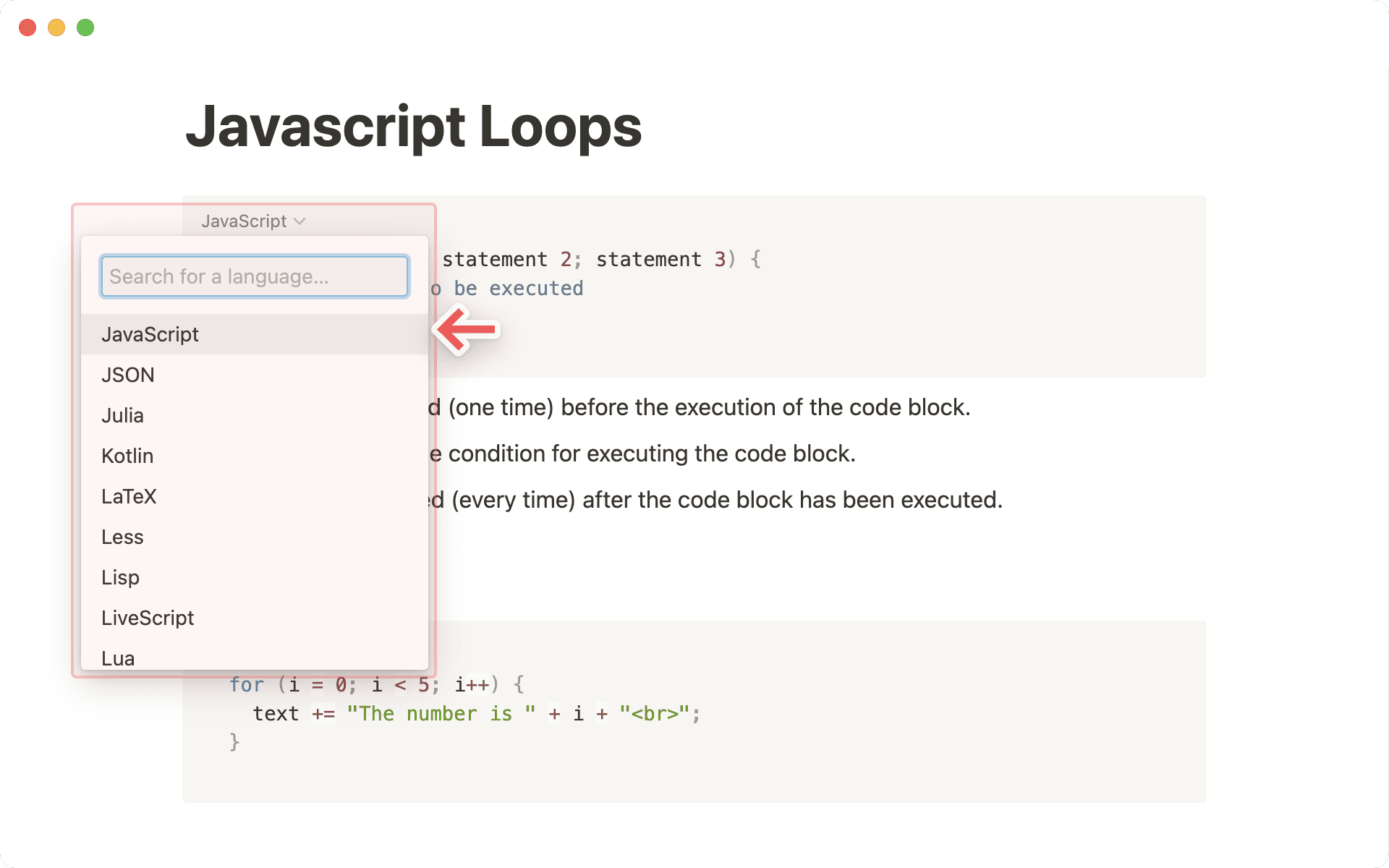
To eliminate side scrolling and create a line break at the edge of your code block:
Hover over the code block and click
•••at the top right or⋮⋮on the left. You can also right click on the block itself.Switch on the
Wrap codeoption.
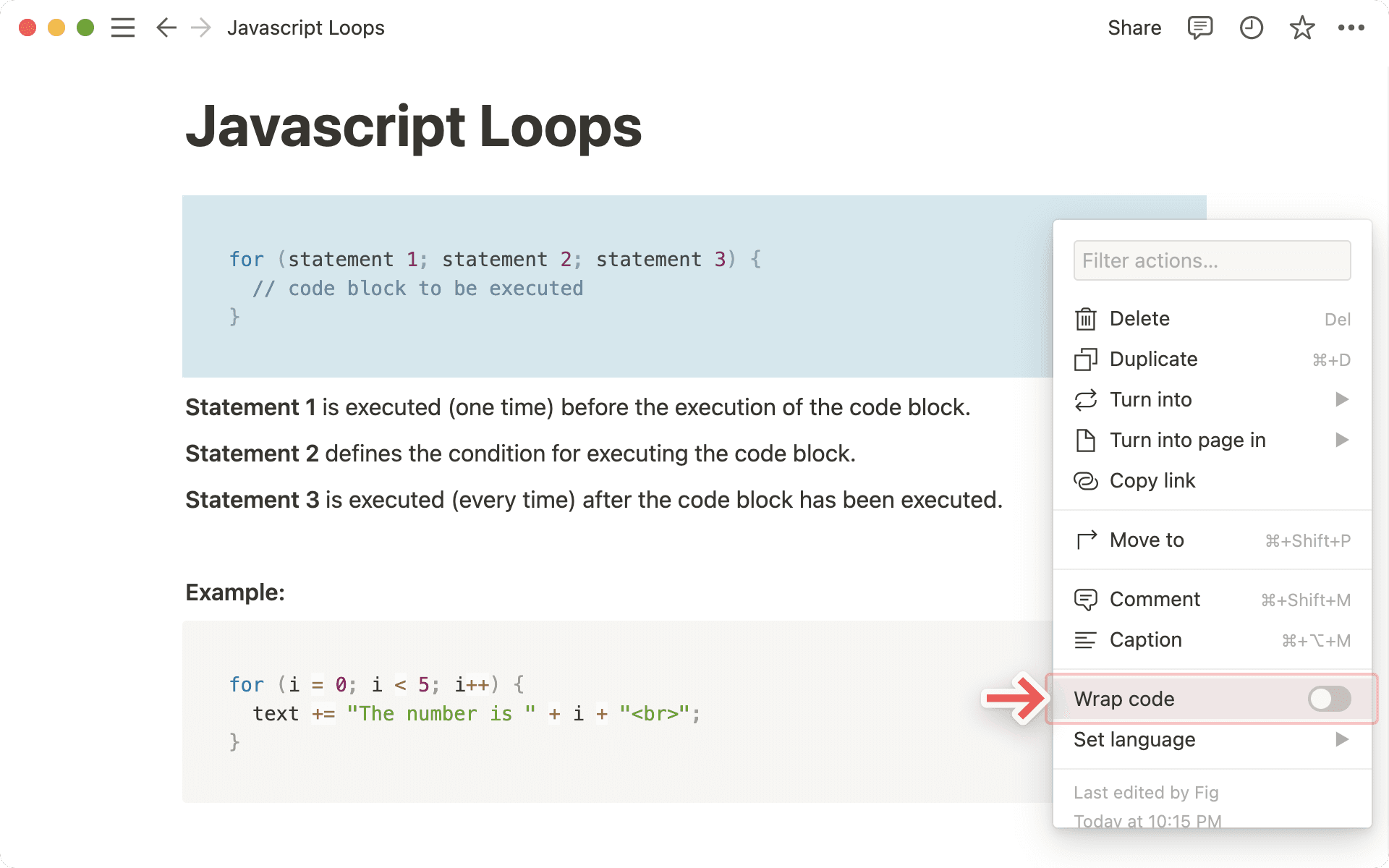
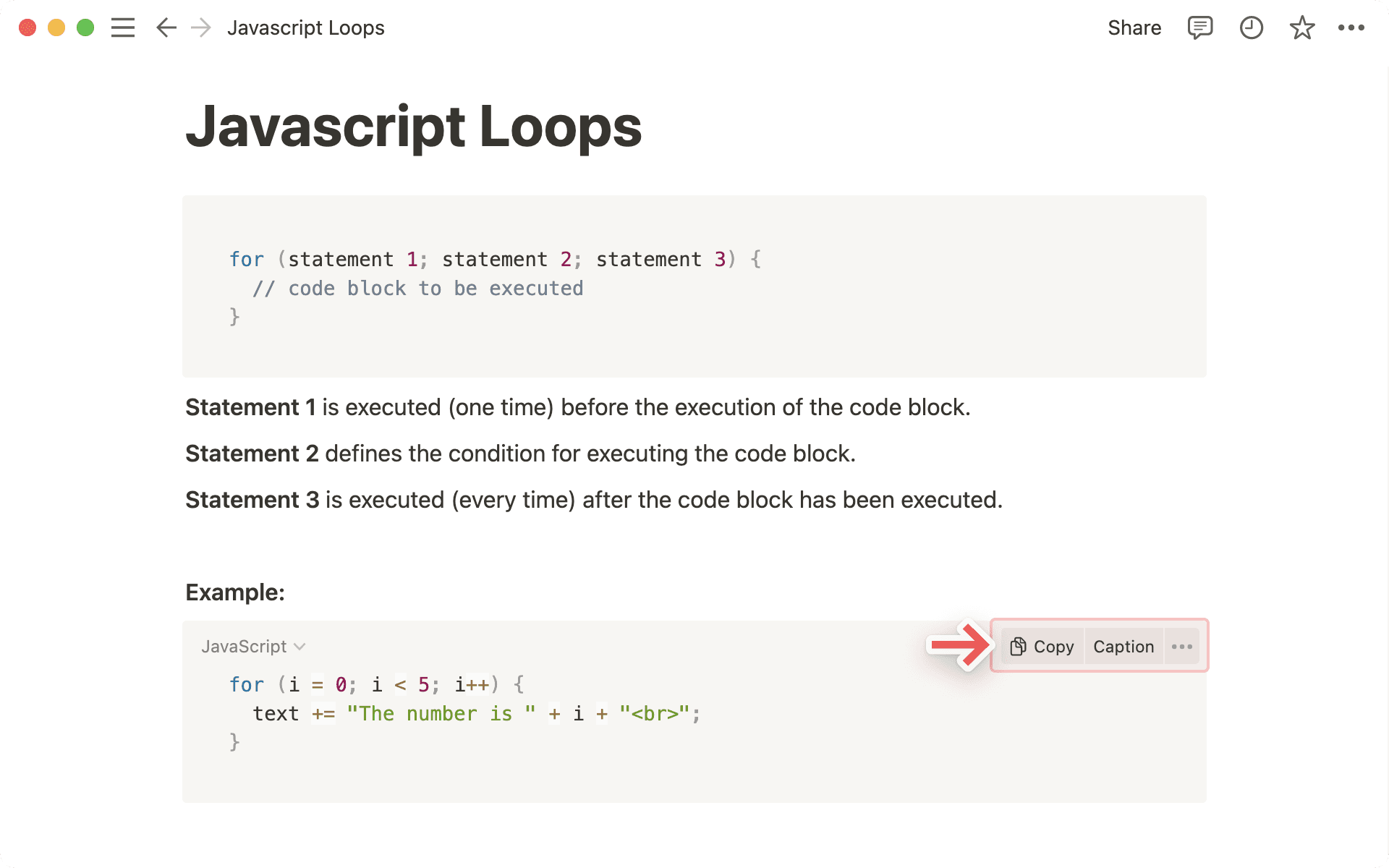
Hover over your code block to reveal the Copy and Caption buttons at the top right.
Click
Copy, and your code is ready to paste into your editor or wherever you want to share it.Select
Captionand enter whatever you want to say about the code!Click the
•••menu for even more options.

Note: This button is invisible to users who have "Can view" permission levels on the page.