Data sources

Want to view multiple data sources in a single database? Need to reference a specific database view in a page? Learn how to create or link data sources in a database ⛓
מעבר לשאלות הנפוצותEvery database is made up of at least one data source. A data source is a set of pages in a database — for example, your tasks database displays your task data source, which is made up of multiple task pages.
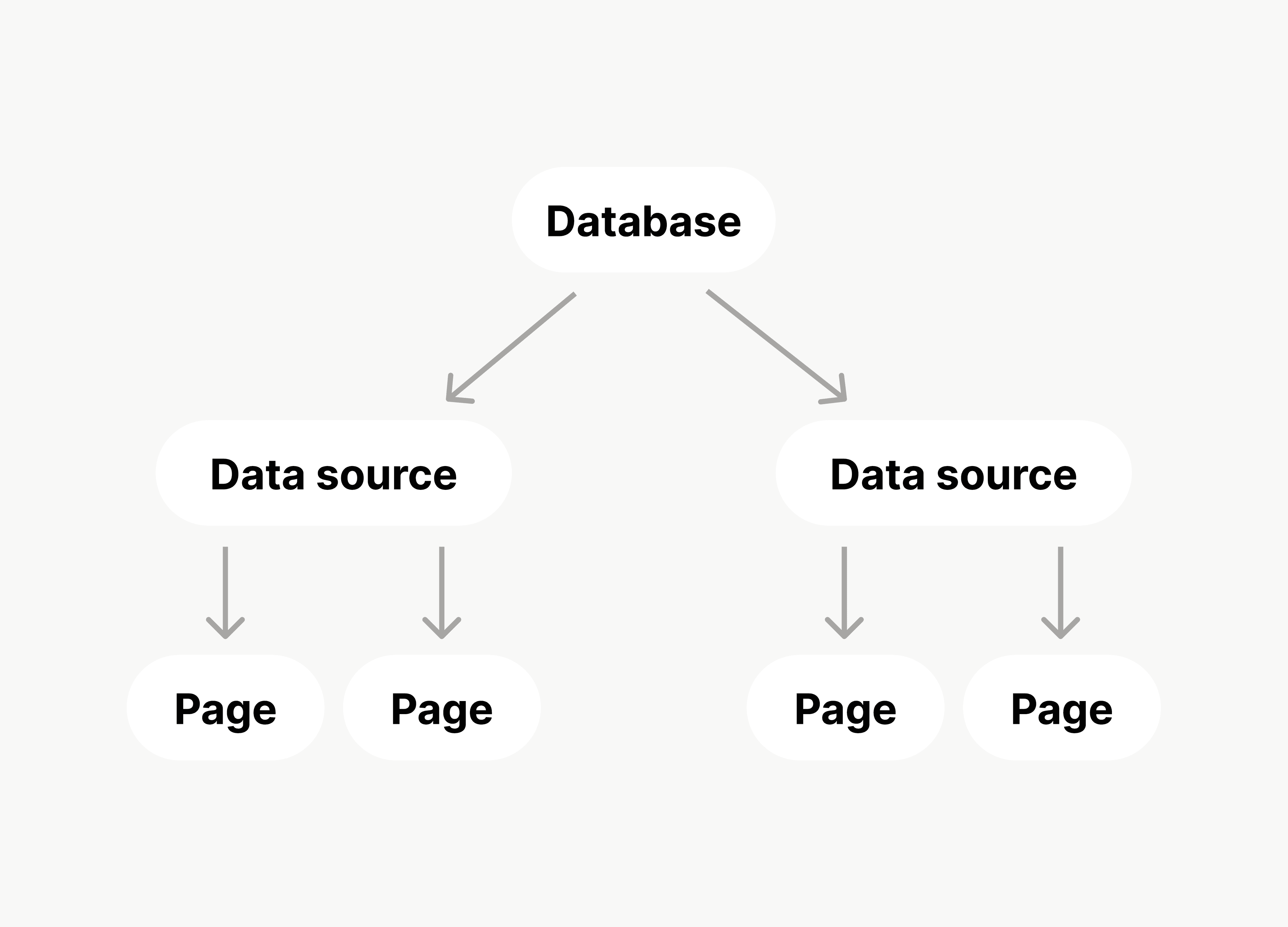
When you create a new database, the pages you create in that database make up its data source. Alternatively, you can choose to link an existing data source instead. That existing data source’s pages will appear in your database.

Here are some ways you might use a database with multiple sources:
CRM: You could have an all-in-one database with information on your contacts, companies, deals, and activities.
Project management: You could see all your team’s members, projects, tasks, and important resources in one database.
Recruiting: You could view your candidates, open roles, departments, and interview schedules through a single database.
To create a new database with a new data source:
Create a new page and under
Get started with, select•••→Database. You can also open an existing page and use the slash command/database.In the menu that appears, select
New empty database. You can also build the database with Notion AI or using a template.
To create a new database that links to an existing data source:
Create a new page and under
Get started with, select•••→Database. You can also open an existing page and use the slash command/database.In the menu that appears, select
Link to existing data source. Find and select the database that contains the data you want to use in your new database.

Note:
You can’t set a different level of access for each source in your database.
However, every linked data source in a database will respect the access level of the original database. For example, if you connect your team’s task data source to your own database, you’ll have the same level of access to that data that you have in the original team task database.
Note: Only users who have Can edit access to a database can move its data sources.
A database can contain multiple data sources in one. For example, you could have a tasks data source and a projects data source that you manage in a single database. Again, you can add a brand-new data source to your database, or add a data source that exists elsewhere in your database.
To add a data source to an existing database:
Click the slider icon at the top of the database.
In the menu that appears, select
Manage data sources.If you want to create a new data source, select
Add data source. If you want to link an existing data source, selectLink existing data source.
To view or edit the data sources in a database:
Click the slider icon at the top of the database.
In the menu that appears, select
Manage data sources.Under
Sources, you’ll find the data sources that originate from the database you’re in. Select•••next to a source toMove toa different location in your workspace, orMove to Trash. You can also selectAdd data source.Under
Linked, you’ll find the data sources that come from a different database in your workspace. SelectXnext to a linked data source to remove it from your current database.
Note: Only users who have Full access in a database can move its data sources. Here’s what happens when you move your data source to another location in your workspace:
If you move your data source to another database, it will be added to that database as its data source.
If you move your data source to a page (not a database), it’ll be added as a database in that page.
You can choose to move all your views over to the new destination, or keep all of the existing views where they are. Existing views that don’t get moved along with the data source will become linked views. In your destination, you’ll have a new table view of the data source.
When interacting with a linked data source, the views, filters, sorts, and groups you create and delete will not affect the views on the original database.
However, when you edit the data source’s title, properties, or pages those edits will be reflected in the original data source.

Learn how to upgrade your Notion API for better database support here →
שאלות נפוצות
I tried sharing a page that contains a database with a linked data source, but the recipient wasn't able to see it.
I tried sharing a page that contains a database with a linked data source, but the recipient wasn't able to see it.
Make sure that the person you've shared with has access to the original database.