Starte med en mal
To help you take on a variety of challenges with Notion, we've created lots of templates that you can adopt and customize as your own — including some starter templates already in your workspace! Here's how to use them 💾
Hopp til vanlige spørsmålWhen you first sign up for Notion, you'll see a collection of templates in your sidebar. These are selected for you based on what you tell us during onboarding. You can choose to add them to your workspace and use them, or you can delete them.
To delete a template:
Click the
•••to the right of the page name.Click
Delete.
Notion's Marketplace includes thousands of templates built for many purposes by Notion users around the world, which you can use to get started in Notion or get inspired.
To access Marketplace, look for templates, and add them to your workspace:
Find and select
Templatesin your sidebar.Once you find a template you like, you can select
Add(if the template is free) or selectBuy for {price}at the top of the page to add the template to your workspace.
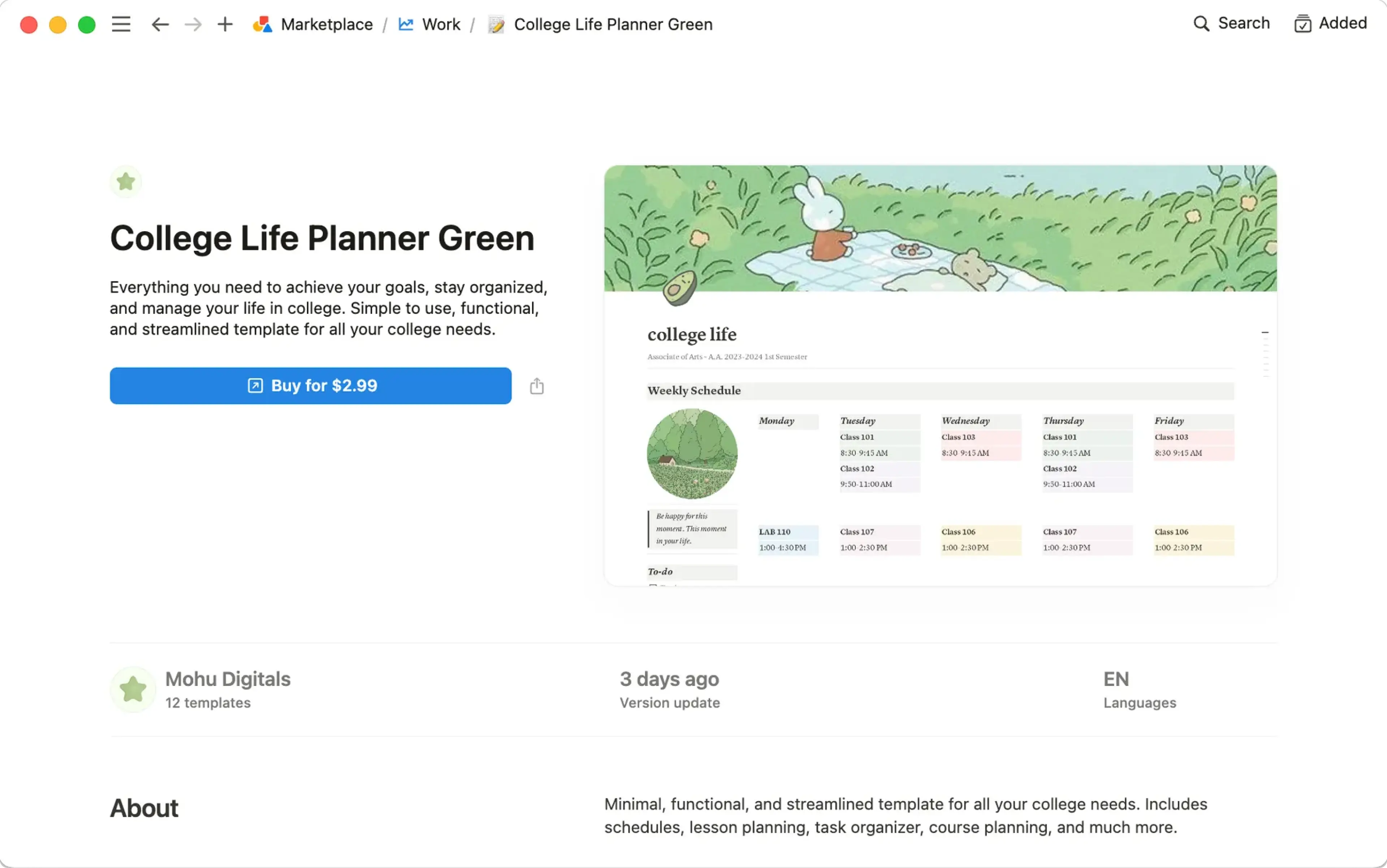
When the template is added to your workspace, you can tweak it to fit your exact needs. Learn more about finding templates on Marketplace here →
Vanlige spørsmål
Kan jeg gjøre siden min til en mal som jeg kan bruke andre steder i arbeidsområdet mitt?
Kan jeg gjøre siden min til en mal som jeg kan bruke andre steder i arbeidsområdet mitt?
Det er dessverre ikke mulig å tilpasse malvelgeren. Den beste måten å gjøre dette på er å:
Oppbevare en tom versjon av malsiden din i venstre sidestolpe.
Klikk på
•••ved siden av navnet på siden i sidestolpen, og deretter påDuplisernår du trenger en ny kopi.
Disse alternativene kan også være nyttige, avhengig av hva du bruker Notion til!
Du kan raskt duplisere deler av innholdet med en malknapp. Perfekt til å skrive dagbok! Mer informasjon her →
I databaser kan du opprette nye databaseoppføringer med egenskapene og sideinnholdet allerede fylt ut ved hjelp av databasemaler. Mer informasjon her →
Kan jeg be om en mal for noe?
Kan jeg be om en mal for noe?
Ja! Vi vil gjerne ha ideene dine. Tweet dem til oss på @NotionHQ (med hashtaggen #mal) eller send dem til teamet vårt på [email protected].