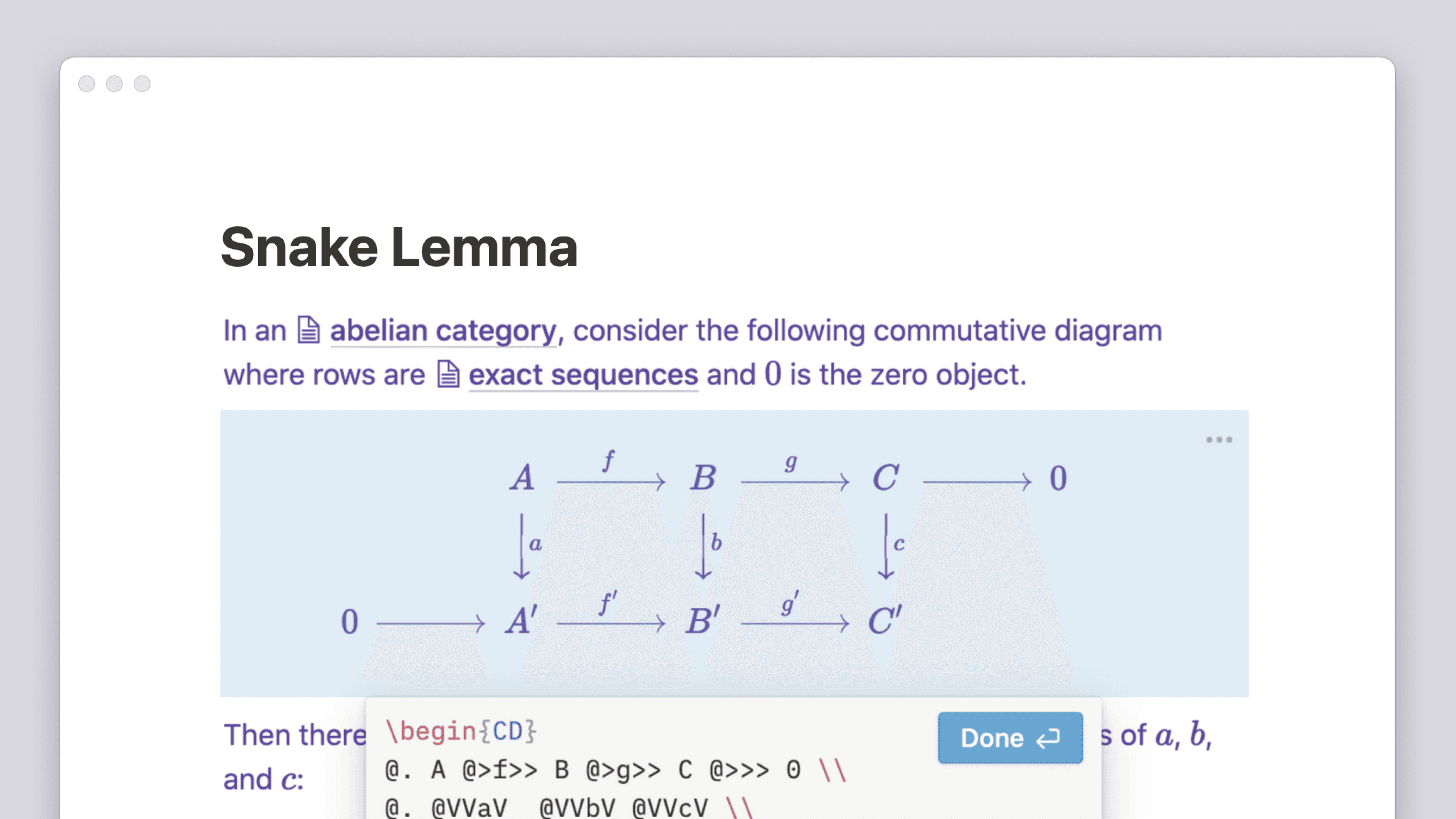
โค้ดบล็อค

โค้ดบล็อคมีประโยชน์สำหรับการสาธิตแนวคิดการเขียนโปรแกรม การแชร์โค้ดกับนักพัฒนาคนอื่นๆ หรือการเก็บรักษาคลังโค้ดของคุณเอง นอกจากนี้ยังช่วยให้การคัดลอกโค้ดจำนวนเท่าใดก็ได้ไปยังคลิปบอร์ดของคุณเพื่อนำไปใช้ที่อื่นเป็นเรื่องง่ายดาย
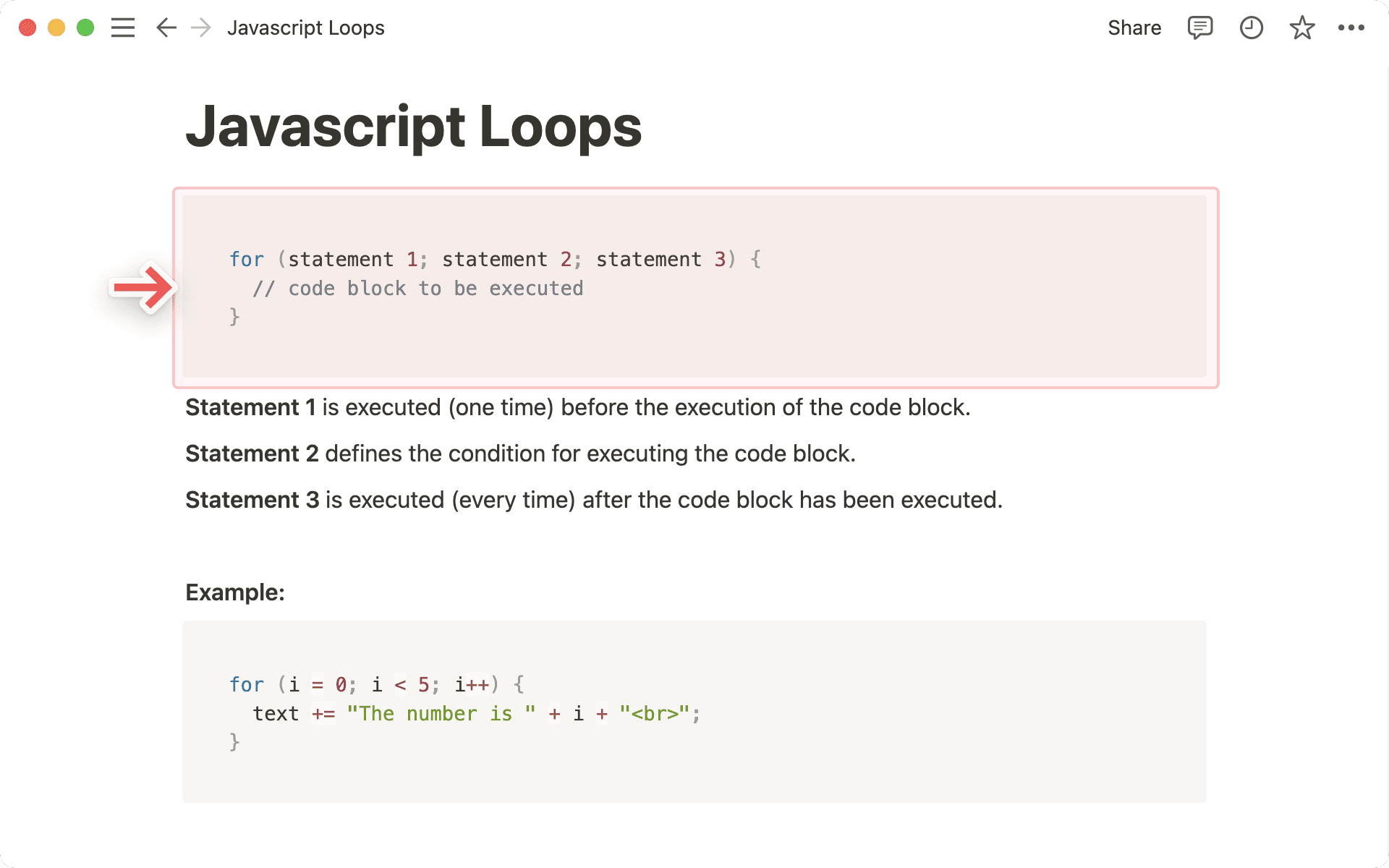
บนหน้า Notion ใดก็ตาม คุณสามารถสร้างโค้ดบล็อคเพื่อแสดงโค้ดเพื่อให้แยกออกมาจากเนื้อหาที่เหลือและจัดรูปแบบตามภาษาได้
คลิก
+ที่ปรากฏทางด้านซ้ายเมื่อคุณวางเมาส์เหนือบรรทัดใหม่ เลือกCodeแล้วกดenterหรือพิมพ์/codeแล้วกดenterเมื่อโค้ดบล็อคใหม่ของคุณพร้อมใช้งานแล้ว ให้คลิกเข้าไปข้างในเพื่อพิมพ์หรือวางโค้ดของคุณ
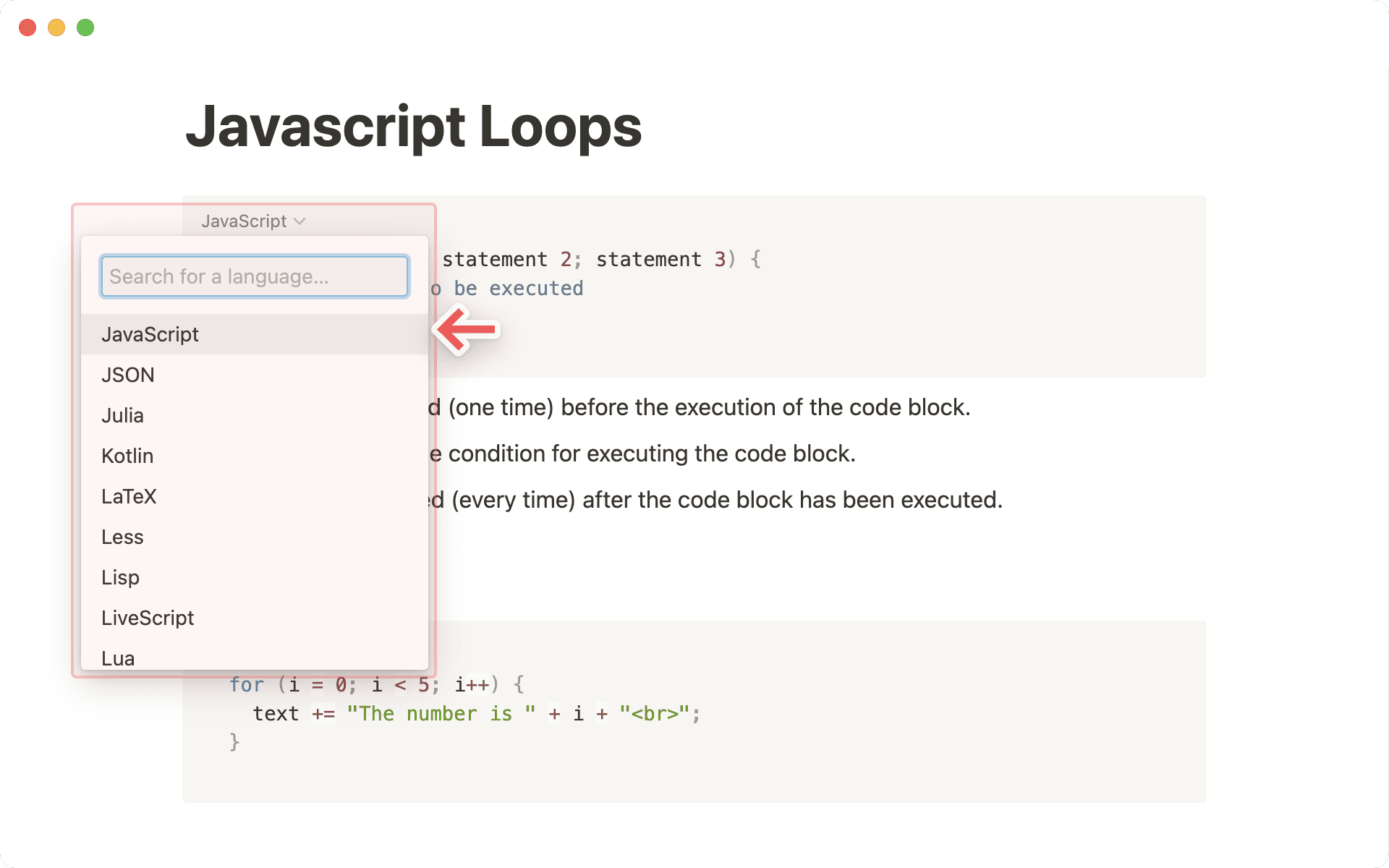
เรารองรับการเน้นไวยากรณ์สำหรับภาษาโปรแกรมจำนวนมาก หากต้องการเปลี่ยนภาษาที่แสดงของโค้ดของคุณ:
คลิกชื่อภาษาที่ด้านซ้ายบนของโค้ดบล็อค
พิมพ์ชื่อภาษาโปรแกรมของคุณเพื่อค้นหา จากนั้นกด
enterเพื่อเลือก
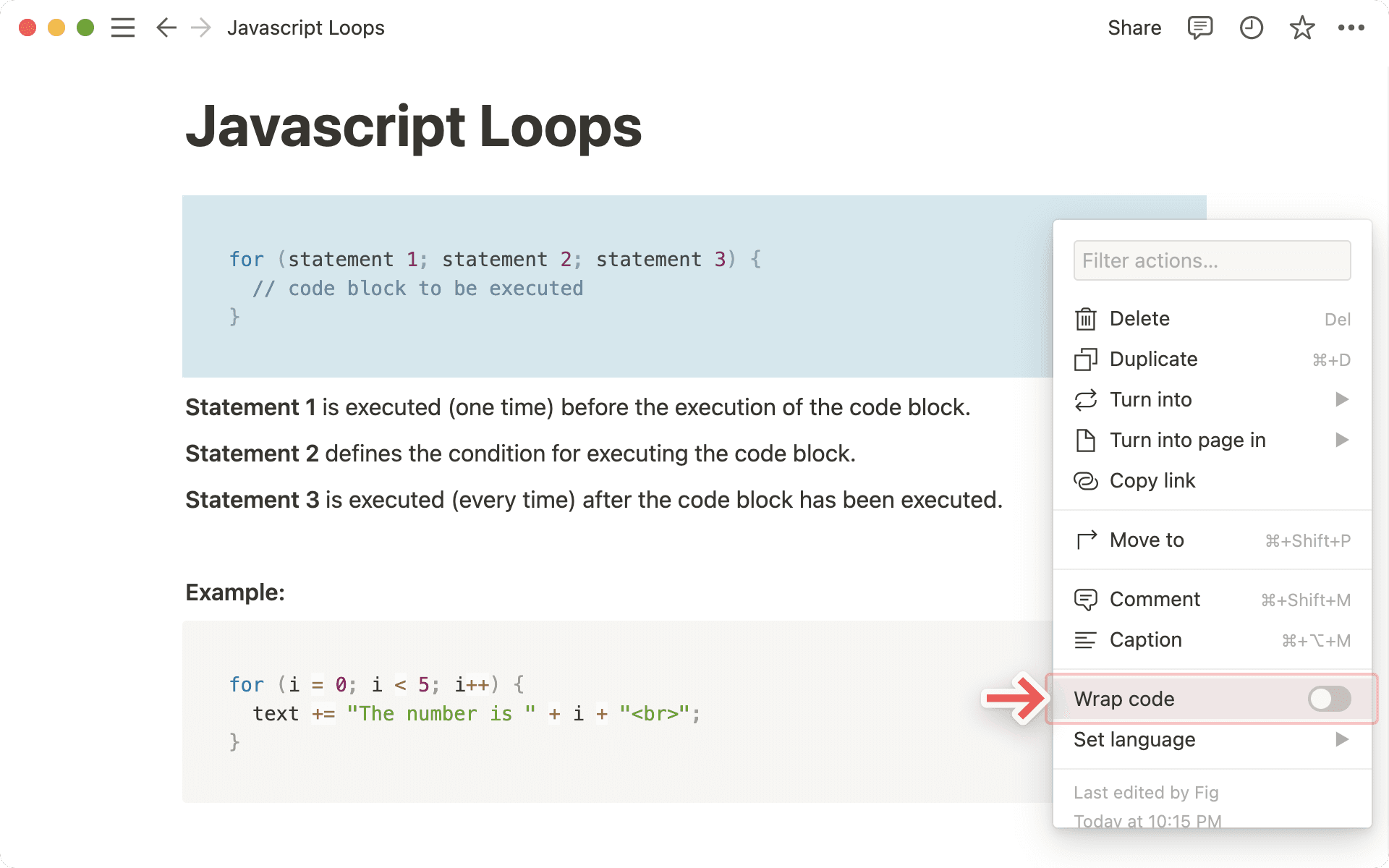
เพื่อกำจัดการเลื่อนหน้าจอไปด้านข้างและสร้างการขึ้นบรรทัดใหม่ที่ขอบของโค้ดบล็อคของคุณ:
วางเมาส์เหนือโค้ดบล็อคแล้วคลิก
•••ที่ด้านขวาบน หรือ⋮⋮ที่ด้านซ้าย คุณยังสามารถคลิกขวาที่ตัวบล็อคได้อีกด้วยเปิดตัวเลือก
Wrap code
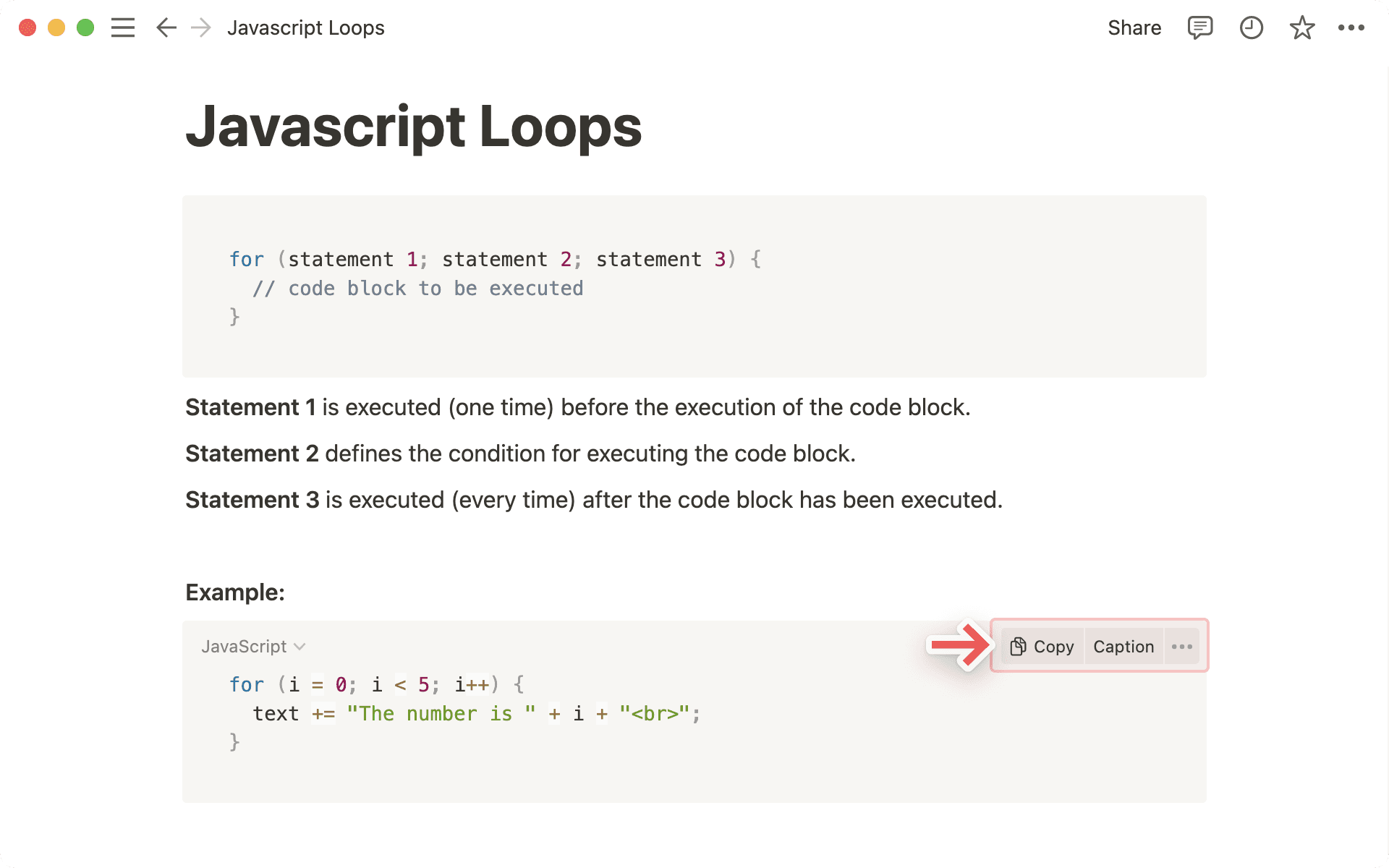
วางเมาส์เหนือโค้ดบล็อคของคุณเพื่อแสดงปุ่ม Copy และ Caption ที่ด้านขวาบน
คลิก
Copyแล้วโค้ดของคุณก็พร้อมที่จะวางลงในโปรแกรมแก้ไขหรือที่ใดก็ตามที่คุณต้องการแชร์เลือก
Captionแล้วพิมพ์สิ่งที่คุณต้องการพูดเกี่ยวกับโค้ดนั้น!คลิกเมนู
•••เพื่อดูตัวเลือกเพิ่มเติม

หมายเหตุ: ปุ่มนี้จะมองไม่เห็นสำหรับผู้ใช้ที่มีสิทธิ์ "ดูได้" ในหน้านี้